
Introducing GPTExcel: an AI assistant for your spreadsheets
Upload an Excel or CSV file, ask in plain English, and get answers, formulas, pivot tables, charts and reports back. Here's a tour of everything GPTExcel does.
Most people use a fraction of what their spreadsheet can do. Not because the rest isn't useful, but because getting to it means remembering function names, argument orders and where the pivot table button lives.
GPTExcel removes that step. You describe the result you want, in your own words, and it does the spreadsheet work: reads your file, runs the calculation, writes the formula, builds the pivot table or chart, and hands back a file you can download.
This post is a tour of what it does today. Each clip below is the real app.
Chat with your spreadsheet
Upload a workbook or CSV and ask a question the way you'd ask a colleague. Before answering, GPTExcel reads the file to learn its sheets, columns and data types. When the answer is a number, it computes it by running code on your data, not by estimating.
Answers can include tables, charts, formulas and files to download. Each one ends with a few follow-up questions you can click, so the next step is one tap away.
It reads Excel files (.xlsx, .xls, .xlsm, .xlsb and templates), CSV and TSV files, and images, such
as a screenshot or photo of a table. The file uploads guide has the details.
Formulas, written and explained
Ask for a formula in plain English and get one you can paste, with a short note on how it works. Paste a formula you inherited and get it explained step by step, or ask for a cleaner, faster version.
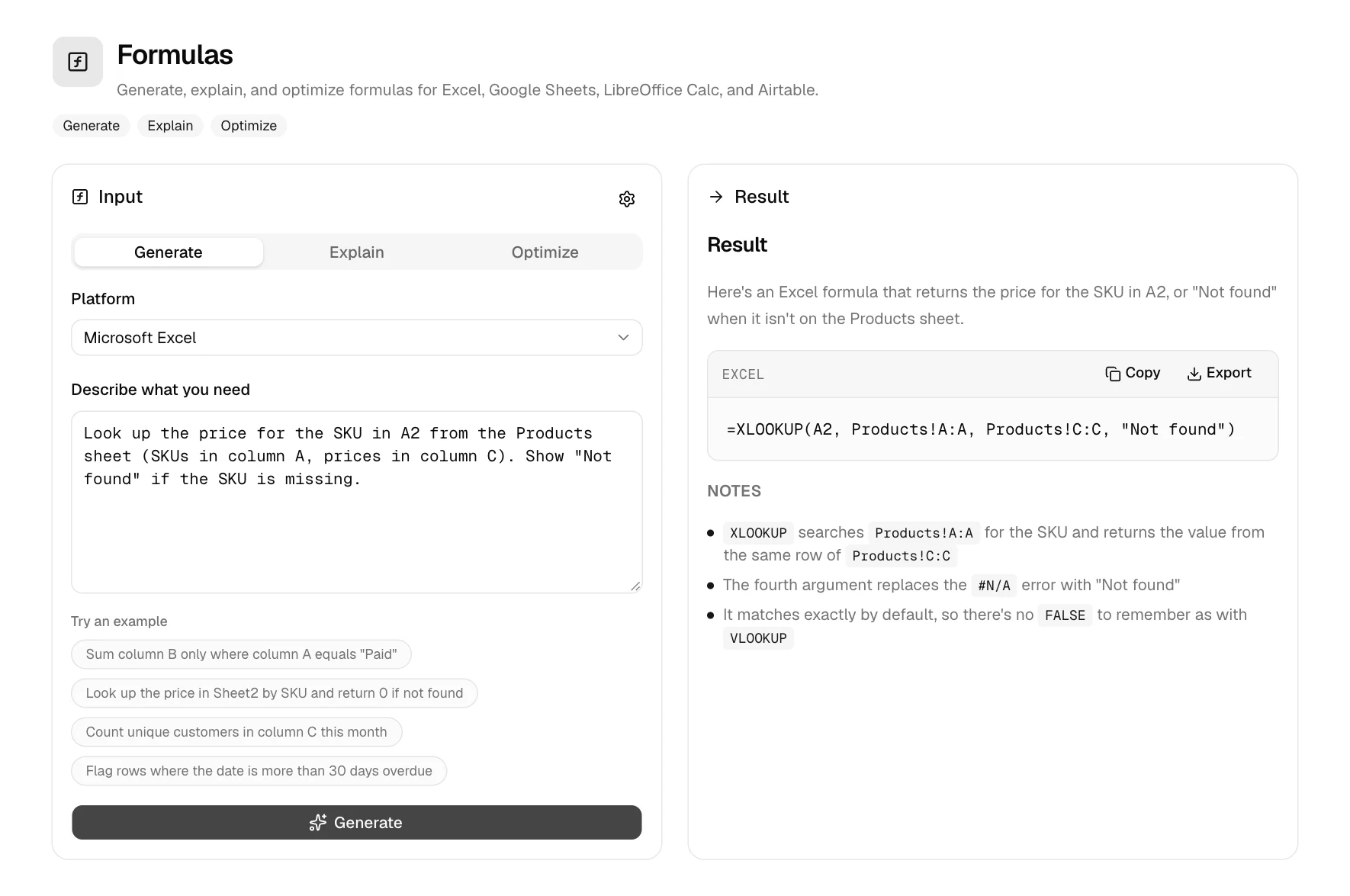
Formulas work for Microsoft Excel, Google Sheets, LibreOffice Calc and Airtable. Set your platform, version, formula language and argument separator once in the formula settings, and every formula follows them.
Pivot tables without the pivot table dialog
The Pivot Builder agent creates native Excel pivot tables, not static summaries: real pivot tables, slicers, timelines and pivot charts in a workbook you download and keep working with in Excel.
It can also change or remove pivot objects that are already in your file. The Pivot Builder guide shows how to ask for exactly the layout you want.
Charts from a sentence
Ask for a chart and GPTExcel picks a chart type that fits the data and draws it in the conversation. You can restyle it with Configure and save it with Download PNG.
Reports and cleaned-up files
Ask for a summary your manager can read, or for your data cleaned, reshaped or split. GPTExcel writes the report into the chat and returns reworked data as a new file to download.
For a full walkthrough of the cleaning side, see cleaning messy spreadsheet data with AI.
The other tools
Next to Chat, GPTExcel has focused generators for jobs that don't need a file:
| Tool | What it does |
|---|---|
| Formulas | Generates, explains and optimizes formulas for Excel, Google Sheets, LibreOffice Calc and Airtable |
| Scripts | Writes VBA, Google Apps Script, LibreOffice Basic, Airtable scripts and Python |
| SQL | Writes and explains SQL queries |
| Regex | Builds regular expressions, with a tester to try them on your own text |
| Templates | Generates a ready-made table layout for a task, such as a budget or a tracker |
Share what you found
Any conversation can be shared as a read-only link. People you send it to can read it without signing in. Files you uploaded stay private: a shared chat never lets anyone download your original data.
What it costs
Every plan includes every tool. The free plan needs no credit card; Pro and Pro Plus raise the limits on messages, tool runs and file sizes. See pricing for the current numbers.