
How to clean messy spreadsheet data with AI, step by step
Duplicates, stray spaces, dates stored as text, five spellings of one country. A four-step workflow to find and fix them with GPTExcel, and check the result.
Data exported from a CRM, a form or another team's workbook is rarely ready to use. The same customer appears twice. Names carry invisible spaces that break lookups. Dates are text, so they sort wrong. "USA", "U.S." and "United States" count as three countries.
Fixing that by hand means a helper column per problem and a lot of scrolling. Here's how to do it in a few messages with GPTExcel instead, using a 12,410-row customer export as the example.
Step 1: Upload the file and ask for an audit
Attach the file (click the paperclip, or drag it onto the chat) and ask what's wrong before asking for any fixes:
What data quality issues do you see in this file?GPTExcel reads the whole file first, then checks it. Here it reports each issue with the column it affects and how many rows have it:
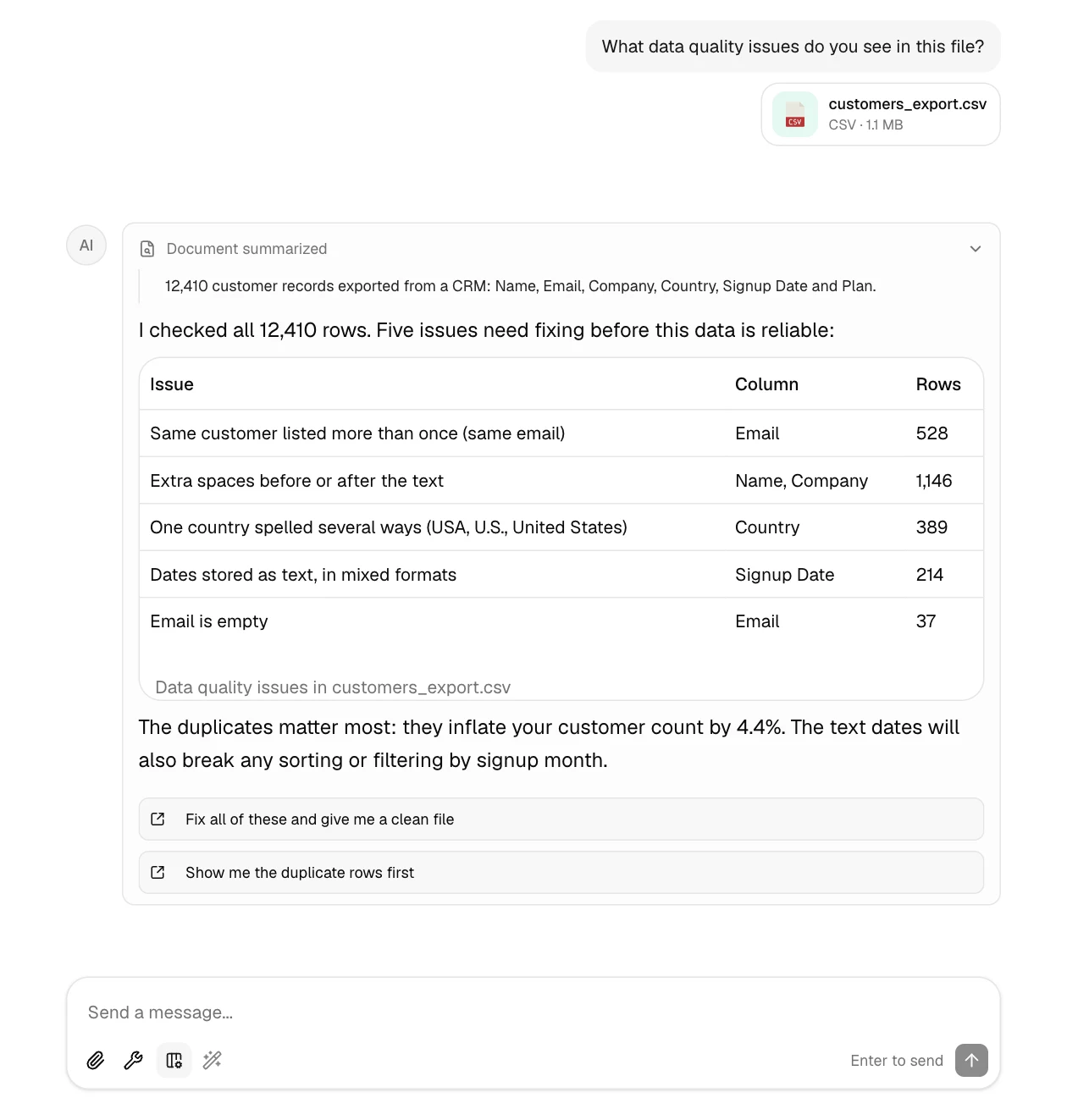
Starting with an audit has two benefits. You find problems you didn't know about, and you get the "before" numbers to check the cleaned file against.
Step 2: Fix everything in one instruction
Now say exactly how each problem should be fixed. The more specific the rules, the less guessing:
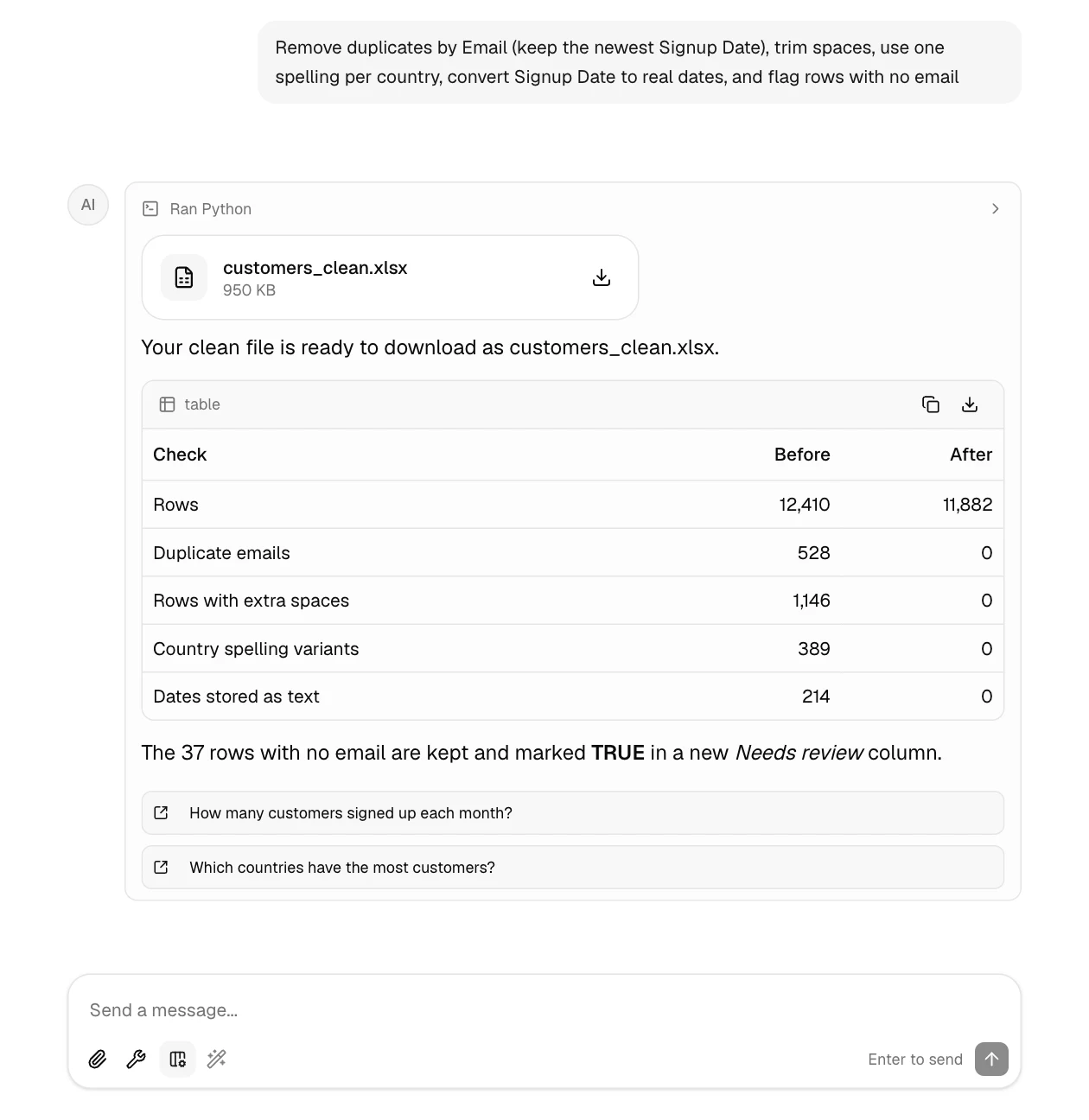
Remove duplicates by Email (keep the newest Signup Date), trim spaces, use one
spelling per country, convert Signup Date to real dates, and flag rows with no email
A few decisions are worth spelling out, because there's no single right answer:
| Problem | Decide |
|---|---|
| Duplicates | Which column identifies a duplicate, and which copy to keep (newest, oldest, most complete) |
| Missing values | Delete the rows, fill them with a default, or keep them and flag them |
| Inconsistent names | Which spelling wins, for example "United States" |
| Dates | The format you want them in, if not your spreadsheet's default |
GPTExcel writes and runs the cleaning code, then gives you the cleaned data as a new file to download:
Step 3: Check the result
Don't take a cleaned file on trust. Three quick checks:
- Compare against the audit. Every issue from step 1 should now be at 0. The row count should drop by exactly the number of duplicates: here 12,410 − 528 = 11,882.
- Look at how it was done. Click Ran Python above the file to see the exact code that produced it. You can see which rows counted as duplicates and which copy was kept.
- Spot-check a few rows. Open the file and find one duplicate customer from the original. There should be one row left, with the newest signup date.
If something's off, say so in plain English, for example "keep the oldest signup instead", and you get a corrected file.
Step 4: Put the clean data to work
Once the data is clean, keep going in the same chat. The follow-up questions under each answer are a good start: signups by month, customers by country, or a pivot table of plans by region.
Common cleaning requests
These work well as starting points. Swap in your own column names:
Split Full Name into First Name and Last NameStandardize phone numbers to the format +1 555 123 4567Convert the Amount column from text like "$1,200.50" to numbersMerge the two uploaded files on Customer ID and keep every row from the firstFind rows where End Date is before Start DateRemove empty rows and columns, then sort by Region and Date
Keep a copy of your original
Keep the file you uploaded until you've checked the cleaned one. If you need to undo a decision, you can start again from the original.