
File Uploads
Which files you can upload to GPTExcel, how to attach them, the limits on each plan, and how to download the files it creates.
Attaching files
In the chat, attach a file in any of three ways:
- Click the paperclip in the message box and pick the file.
- Drag the file anywhere onto the chat.
- Paste a copied file or screenshot into the message box.
The file uploads while you type. Its tile fills up as it goes, and it's ready when it shows the file type and size:
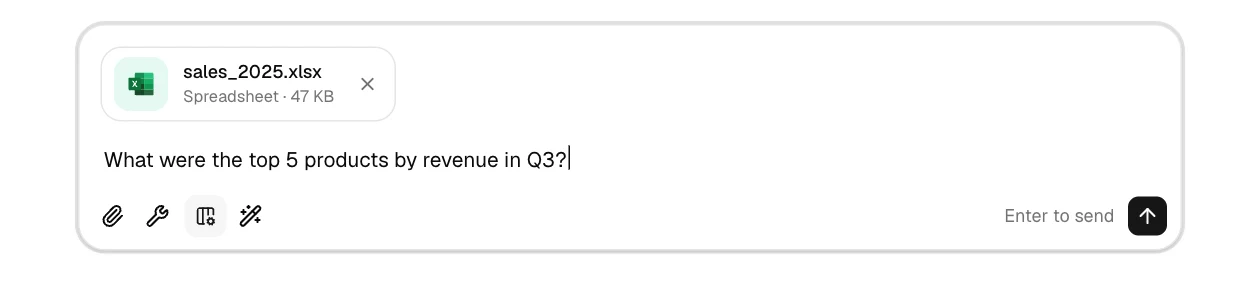
You can attach up to 5 files per message, for example two exports to merge.
Supported formats
| Format | Extensions | Notes |
|---|---|---|
| Excel workbook | .xlsx, .xls, .xlsb | Every sheet is read |
| Excel macro-enabled and templates | .xlsm, .xltx, .xltm | Macros are never run; the data is read |
| CSV and TSV | .csv, .tsv | UTF-8 recommended |
| Images | .png, .jpg, .jpeg, .gif, .webp | For example a photo or screenshot of a table, which GPTExcel can turn into a spreadsheet |
Limits
Limits depend on your plan:
| Plan | Max file size | Files per chat |
|---|---|---|
| Free | 5 MB | 10 |
| Pro | 50 MB | 20 |
| Pro Plus | 100 MB | 30 |
See pricing for everything else each plan includes.
Uploading a file with the same name as one already in the chat keeps both: the new one is saved as
name-v2, then name-v3, and so on, so you can say which version you mean.
Downloading results
When GPTExcel creates a file, such as a cleaned dataset, a report or a workbook with a pivot table, it appears in the answer as a card. Click the download icon to save it:
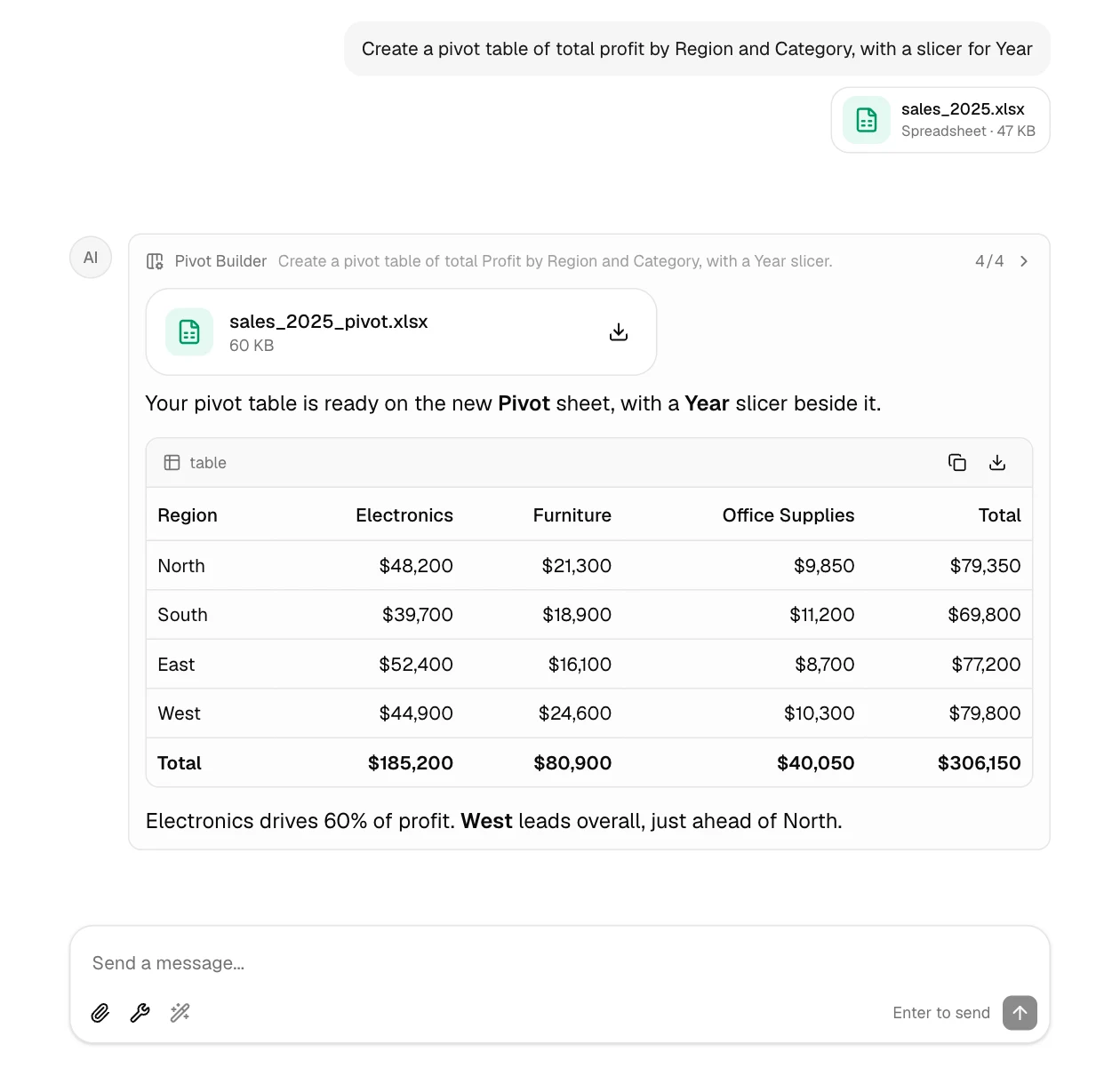
Most tables in an answer also have their own copy and download buttons, so you can take a small result without asking for a file.
Privacy
Uploaded files stay in your account until you delete the chat or your account. They're never downloadable from a shared chat link. See the Privacy Policy for details.