
AI Chat
How GPTExcel's chat works, what its answers can contain, and how to write prompts that get the result you want.
Chat is the core of GPTExcel. Attach a spreadsheet, ask for what you need in plain English, and keep the conversation going until you have the answer, the formula or the file.
How it works
- It reads your file first. When you attach a file, GPTExcel summarizes its structure (sheets, columns, data types) before doing anything else. You'll see a Document summarized step at the top of the answer.
- It computes, rather than estimates. Totals, averages, rankings and other figures come from code it runs on your data. Click the Ran Python step in an answer to see exactly what it ran.
- It answers in the most useful form. A short explanation, plus a table, a chart, a formula or a file to download, whichever fits the question.
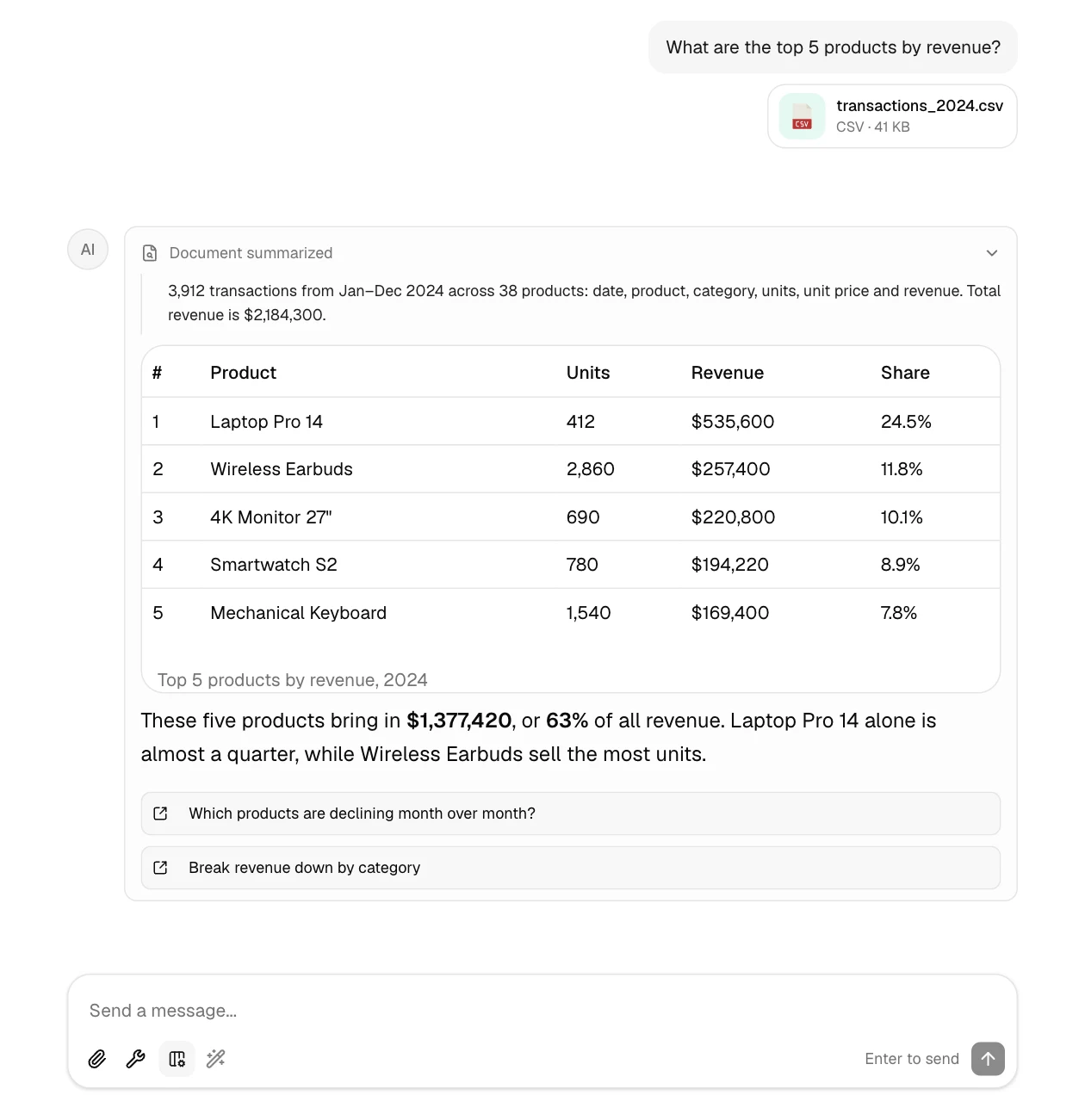
What an answer can contain
| You ask for | You get |
|---|---|
| A figure or a comparison | The answer, with the table it came from |
| A chart | An interactive chart you can restyle with Configure and save with Download PNG |
| A formula | The formula in a copyable block, with how it works |
| A brand-new function | A lookup in the official docs first, with a warning if it's Beta-only (see New and preview functions) |
| A pivot table | A workbook with a native Excel pivot table (see Pivot Builder) |
| A presentation | A slide deck with charts, to download as PowerPoint or PDF (see Slide Deck Builder) |
| Cleaned or reshaped data | A new file to download |
| A report or summary | Formatted text with headings, tables and recommendations |
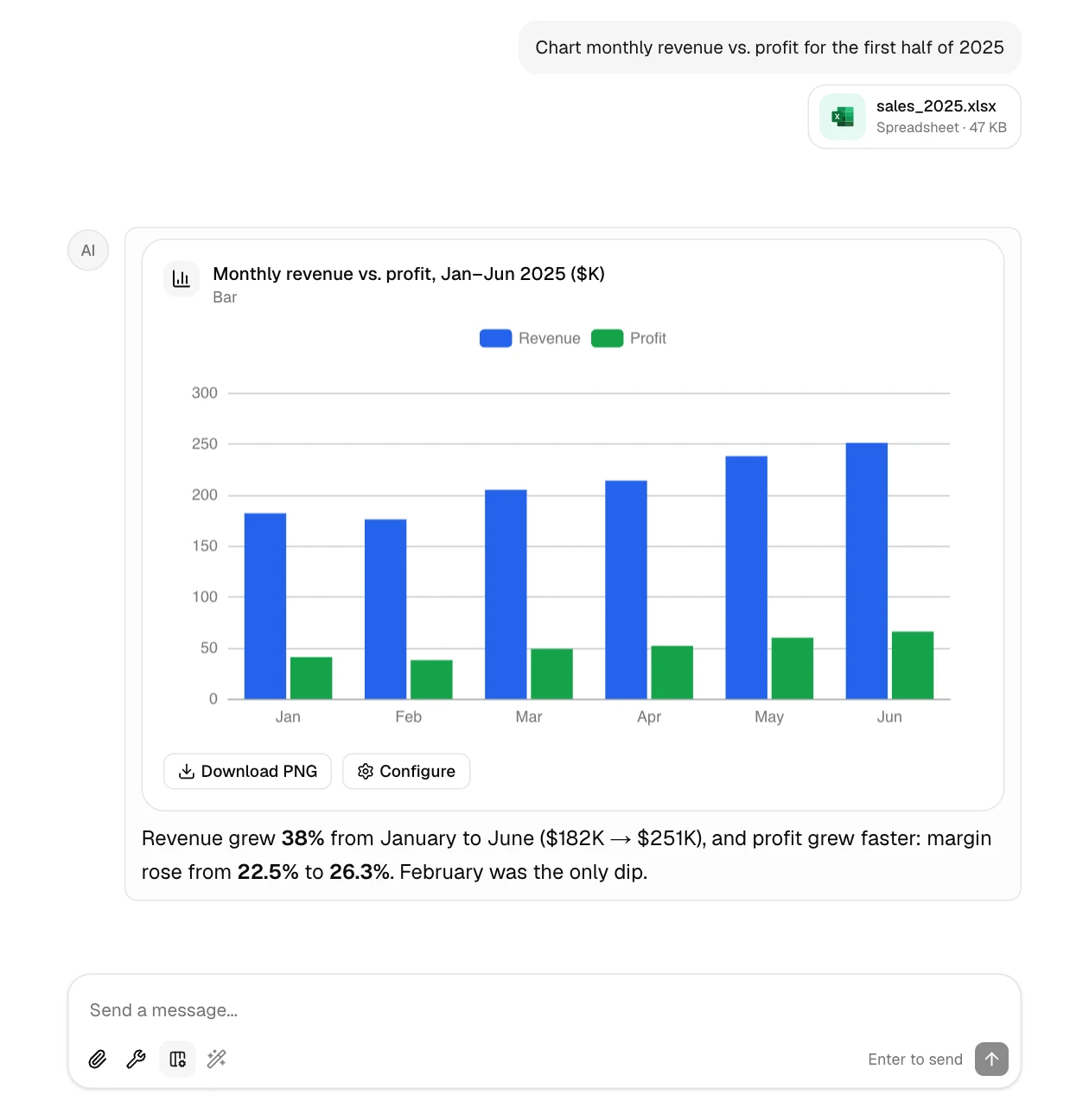
Every answer ends with a few suggested follow-ups. Click one to send it.
Good prompts
Say what result you want, which data to use, and any rule that matters. Specific prompts need less guessing:
| Instead of | Try |
|---|---|
| "analyze this" | "Which region had the highest sales growth from 2024 to 2025?" |
| "fix the data" | "Remove duplicate rows based on the Email column, keeping the newest" |
| "make a chart" | "Create a bar chart of monthly revenue for 2025" |
| "pivot" | "Pivot table of total Profit with Region as rows and Category as columns" |
| "make slides" | "A 5-slide Q3 review for leadership: headline numbers, monthly trend, next steps" |
Not sure how to phrase it? Type a rough version and click the magic wand in the message box to have GPTExcel rewrite it into a clearer prompt. It needs a few words to work with.
Agents
The Agents menu (the hammer in the message box) shows the specialist agents Chat can call:
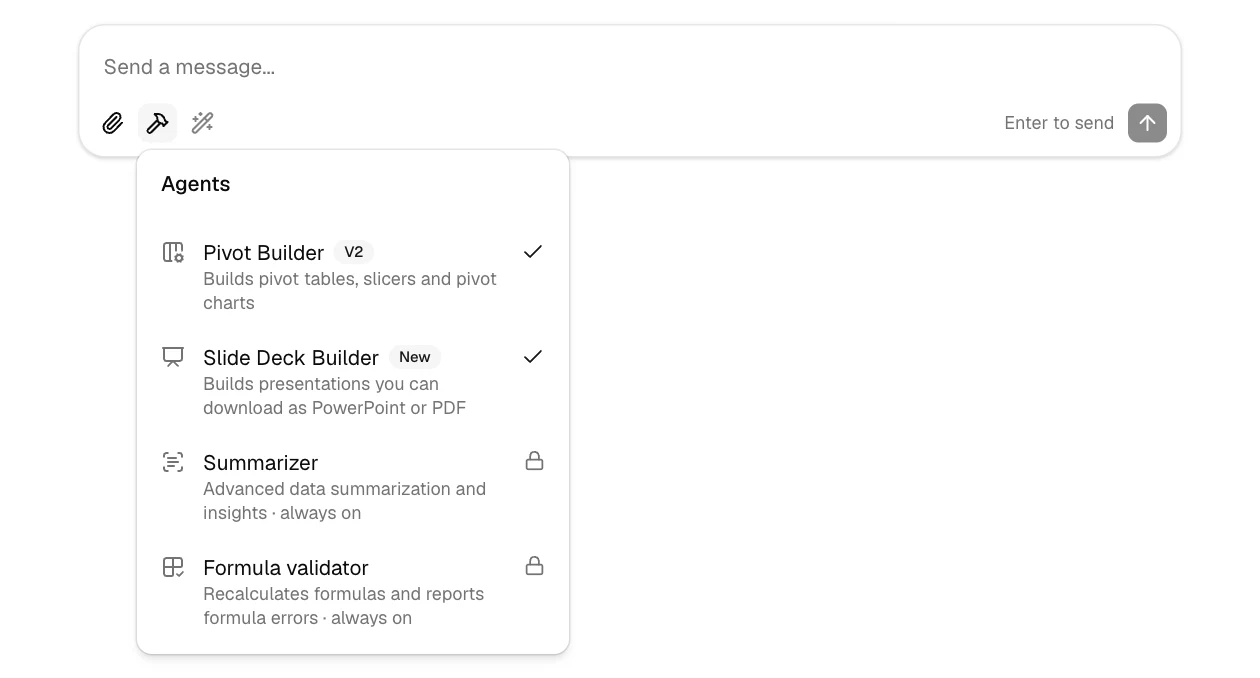
- Pivot Builder builds pivot tables, slicers, timelines and pivot charts. It's on by default; switch it off here if you don't want Chat to use it.
- Slide Deck Builder turns your data into a presentation you download as PowerPoint or PDF. On by default, and can be switched off the same way.
- Summarizer reads and summarizes each file you attach. Always on.
- Formula validator recalculates a workbook's formulas and reports errors. Always on.
Managing a conversation
- Edit a message to change your question; the answer is regenerated from there.
- Retry an answer to get a new version of it.
- Stop a long answer with the square button while it's being written.
- History. Every chat is saved. Find it in the sidebar, search your chats, and pin up to 10 you use often with the pin icon at the top of a chat.
Personalize answers
In Settings → General, pick what best describes your work and add Personalization: anything GPTExcel should know about you or how you like answers, such as "I manage budgets in Excel. Keep explanations brief and show formulas." It applies to every new chat.
Share a conversation
Click the share icon at the top of a chat to create a read-only link. Anyone with the link can read the conversation without signing in, and files GPTExcel created in it can be downloaded. The files you uploaded are never downloadable from a shared link. Manage or revoke your links in Settings → Data controls.