# GPTExcel
> GPTExcel is an Excel AI assistant you can start free. Upload Excel or CSV files, ask in plain English, and get formulas, pivot tables, charts, slide decks, and summaries.
GPTExcel is a web app (no install; works in the browser) for anyone who works with spreadsheets: accountants, financial analysts, operations teams, marketers, students, and business owners. It is used by 1.6M+ people and rated 4.9/5 from 938 reviews.
## What it does
- **AI Chat over your files**: upload Excel workbooks (.xlsx, .xls, .xlsm and more), CSV/TSV files, or images of tables, then ask questions in plain English. Get answers grounded in your data, ready-to-paste formulas, charts, and summaries.
- **Up-to-date functions**: when asked about an Excel or Google Sheets function that may be newer than the AI model (e.g. Excel's FLATTEN, Beta Channel since September 2026), Chat looks it up in Microsoft's or Google's official documentation, warns when a function is Insider/Beta-only, and links the source.
- **Pivot Builder**: an agent inside Chat that builds pivot tables, slicers, timelines, and pivot charts from a plain-English request.
- **Slide Deck Builder**: an agent inside Chat that turns an Excel or CSV file into a presentation (up to 40 slides, native charts from the data) and downloads as an editable PowerPoint (.pptx) or PDF; decks can be revised in plain English.
- **Formula generator**: generate, explain, and optimize formulas for Microsoft Excel, Google Sheets, LibreOffice Calc, and Airtable.
- **Script generator**: VBA for Excel, Apps Script for Google Sheets, LibreOffice Basic, Airtable scripts, and Python.
- **SQL generator**: generate, explain, and optimize SQL for PostgreSQL, MySQL, SQLite, SQL Server, Oracle, Snowflake, and more.
- **Regex generator**: generate and explain regular expressions for every major language.
- **Table templates**: structured Excel-style tables with headers, sample rows, and formatting notes.
- **Teams and sharing**: team plans for 2-50 people, and shareable links to chats.
## Plans
Every tool is available on every plan; plans differ only in limits. Prices in USD.
- **Free** ($0): 50 credits a month; fast model; 5 free tool runs every day, then 1 credit each; files up to 5 MB, 10 per chat.
- **Pro** ($9/month, or $6.30/month billed annually (30% off)): ≈ 3,000 credits a month (700 a week); fast and Standard models (1 / 2 credits a message); tool runs come out of the same allowance; files up to 50 MB, 20 per chat.
- **Pro Plus** ($18/month, or $12.60/month billed annually (30% off)): ≈ 10,000 credits a month (2,330 a week); fast, Standard and Expert models (1 / 2 / 10 credits a message); tool runs come out of the same allowance; files up to 100 MB, 30 per chat.
Team plans use the same tiers, priced per seat.
## Key pages
- [Home](https://gptexcel.uk/): The AI spreadsheet assistant
- [Pricing](https://gptexcel.uk/pricing): plans, limits, and team pricing
- [Chat](https://gptexcel.uk/products/chat): chat with Excel and CSV files
- [Pivot Builder](https://gptexcel.uk/products/pivot-builder): the pivot table agent
- [Slide Deck Builder](https://gptexcel.uk/products/slide-deck-builder): the presentation agent: Excel to PowerPoint or PDF
- [FAQ](https://gptexcel.uk/faq)
- [About](https://gptexcel.uk/about)
- [Contact](https://gptexcel.uk/contact): or email contact@gptexcel.uk
- [Full text of docs and blog](https://gptexcel.uk/llms-full.txt)
## Docs
- [Documentation](https://gptexcel.uk/docs): How to use GPTExcel — chat with your spreadsheets, upload files, generate formulas, build pivot tables and slide decks, make charts, use the formula, script, SQL and regex tools, and share chats.
- [Getting Started](https://gptexcel.uk/docs/getting-started): Sign in, upload a spreadsheet, and get your first answer from GPTExcel in a few minutes.
- [AI Chat](https://gptexcel.uk/docs/guides/ai-chat): How GPTExcel's chat works, what its answers can contain, and how to write prompts that get the result you want.
- [File Uploads](https://gptexcel.uk/docs/guides/file-uploads): Which files you can upload to GPTExcel, how to attach them, the limits on each plan, and how to download the files it creates.
- [Formula Generation](https://gptexcel.uk/docs/guides/formulas): Generate, explain and optimize formulas for Excel, Google Sheets, LibreOffice Calc and Airtable from plain English.
- [New and preview functions](https://gptexcel.uk/docs/guides/new-functions): How Chat answers about Excel and Google Sheets functions released after the AI was trained, what "preview" means, and why answers link their source.
- [Pivot Builder](https://gptexcel.uk/docs/guides/pivot-builder): Create native Excel pivot tables, slicers, timelines and pivot charts by describing them in plain English, and edit ones already in your workbook.
- [Slide Deck Builder](https://gptexcel.uk/docs/guides/slide-deck-builder): Turn an Excel or CSV file into a presentation with native charts, then download it as an editable PowerPoint (.pptx) or a PDF.
## Blog
- [FLATTEN in Excel vs Google Sheets: same name, different job](https://gptexcel.uk/blog/flatten-excel-vs-google-sheets): Google Sheets' FLATTEN turns a range into one column; Excel's new FLATTEN spreads lists inside cells into the grid. What each does, and the Excel formula to use instead.
- [New Excel functions in 2026: FLATTEN, IMPORTTEXT and GROUPBY](https://gptexcel.uk/blog/new-excel-functions-2026): What Excel's newer functions do, their syntax, and which versions have them today, including FLATTEN and IMPORTTEXT, which are still Beta-only.
- [How to clean messy spreadsheet data with AI, step by step](https://gptexcel.uk/blog/clean-messy-data): Duplicates, stray spaces, dates stored as text, five spellings of one country. A four-step workflow to find and fix them with GPTExcel, and check the result.
- [Five modern Excel formulas every analyst should know](https://gptexcel.uk/blog/five-formulas): XLOOKUP, SUMIFS, LET, FILTER and TEXTSPLIT replace whole workflows. Worked examples for each, the mistakes to avoid, and which Excel versions have them.
- [Introducing GPTExcel: an AI assistant for your spreadsheets](https://gptexcel.uk/blog/hello-gptexcel): Upload an Excel or CSV file, ask in plain English, and get answers, formulas, pivot tables, charts and reports back. Here's a tour of everything GPTExcel does.
- [Automating Spreadsheets with AI: Your Guide to GPTExcel's Script Generator](https://gptexcel.uk/blog/automating-spreadsheets-with-ai-your-guide-to-gptexcels-script-generator): Harness the power of AI to generate automation scripts for Google Sheets, Microsoft Excel, and Airtable with GPTExcel, accelerating your productivity and efficiency.
- [Decoding and Generating Regex with AI: A Guide to GPTExcel's Regex Generator](https://gptexcel.uk/blog/decoding-and-generating-regex-with-ai-a-guide-togptexcels-regex-generator): Unleash the potential of AI in generating or explaining complex regex patterns with GPTExcel. Streamline your regex processes with ease and efficiency.
- [Decoding Excel Formulas with AI: A Step-by-Step Guide using GPTExcel](https://gptexcel.uk/blog/decoding-excel-formulas-with-ai-a-step-by-step-guide-using-gptexcel): Unravel the complexities of your Excel formulas with GPTExcel, the AI-powered formula explainer for Excel, Google Sheets, and Airtable. Simplify data analysis by understanding every step your spreadsheet takes.
- [Generating Excel Formulas with AI: A Step-by-Step Guide using GPTExcel](https://gptexcel.uk/blog/generating-excel-formulas-with-ai-a-step-by-step-guide-using-gptexcel): Discover how GPTExcel, an AI-powered Excel formula generator, can swiftly create intricate formulas for Excel, Google Sheets, and Airtable, boosting your spreadsheet efficiency.
- [Generating SQL Queries for Diverse DBMS with GPTExcel: An All-Inclusive Guide](https://gptexcel.uk/blog/generating-sql-queries-for-diverse-dbms-with-gptexcel-an-all-inclusive-guide): Unveil how GPTExcel’s AI-powered SQL query generator seamlessly creates complex SQL queries for a wide variety of DBMS, revolutionizing your database operations.
- [Revolutionize Your Spreadsheet Workflow with GPTExcel](https://gptexcel.uk/blog/revolutionize-your-spreadsheet-workflow-with-gptexcel): Step into the future of streamlined spreadsheet processes with GPTExcel, an AI-powered Excel formula generator.
## Optional
- [X (Twitter)](https://x.com/gptexcel)
- [TikTok](https://www.tiktok.com/@gptexcel)
- [YouTube](https://www.youtube.com/@gptexcel)
- [Instagram](https://www.instagram.com/excelbrew)
- [Privacy Policy](https://gptexcel.uk/policy)
- [Terms of Service](https://gptexcel.uk/terms)
---
# Documentation
---
# Documentation
URL: https://gptexcel.uk/docs
> How to use GPTExcel — chat with your spreadsheets, upload files, generate formulas, build pivot tables and slide decks, make charts, use the formula, script, SQL and regex tools, and share chats.
GPTExcel is an AI assistant for spreadsheets. It runs in your browser: upload a file, describe what you
need in plain English, and get back answers, formulas, tables, charts, pivot tables, slide decks and files you can download.
## What you can do
- **Chat with your data.** Upload a spreadsheet and ask questions about it. Chat computes figures by running
code on your file, and answers with text, tables, charts, formulas and downloadable files.
- **Upload files.** Excel workbooks (`.xlsx`, `.xls`, `.xlsm`, `.xlsb` and templates), CSV and TSV files,
and images of tables.
- **Build pivot tables.** The Pivot Builder agent creates native Excel pivot tables, slicers, timelines and
pivot charts in a workbook you download.
- **Build presentations.** The Slide Deck Builder agent turns your data into a deck with native charts, which
you download as PowerPoint or PDF.
- **Use the tools.** Focused generators for [formulas](https://gptexcel.uk/tools/formulas), [scripts](https://gptexcel.uk/tools/scripts) (VBA,
Apps Script, LibreOffice Basic, Airtable, Python), [SQL](https://gptexcel.uk/tools/sql) and [regex](https://gptexcel.uk/tools/regex). Each can
generate, explain or optimize. There's also a [table template](https://gptexcel.uk/tools/templates) generator.
- **Share a chat.** Create a read-only link to a conversation that anyone can open without signing in.
## Plans
Every plan includes every tool. The free plan needs no credit card and has lower limits; Pro and Pro Plus
raise the chat, tool and file-upload limits. See [pricing](https://gptexcel.uk/pricing) for the current limits and prices.
## Explore the docs
Can't find what you need? Read the [FAQ](https://gptexcel.uk/faq) or [contact us](https://gptexcel.uk/contact).
---
# Getting Started
URL: https://gptexcel.uk/docs/getting-started
> Sign in, upload a spreadsheet, and get your first answer from GPTExcel in a few minutes.
This guide takes you from signing in to your first answer. You'll need a modern browser (Chrome, Edge,
Firefox or Safari) and, ideally, a spreadsheet you want answers from. An Excel file or a CSV both work.
## Quick start
### Sign in
Open the [sign-in page](https://gptexcel.uk/login) and continue with **Google**, **Microsoft**, or your **email address**. With
email, you get a sign-in link; there's no password to create. New accounts start on the free plan, with no
credit card.
### Attach a spreadsheet
In the chat, click the paperclip and pick your file. You can also drag the file onto the chat or paste it.
You can attach up to 5 files per message.
The size limit depends on your plan: 5 MB per file on Free, 50 MB on Pro and 100 MB on Pro Plus. See
[file uploads](https://gptexcel.uk/docs/guides/file-uploads) for every supported format.
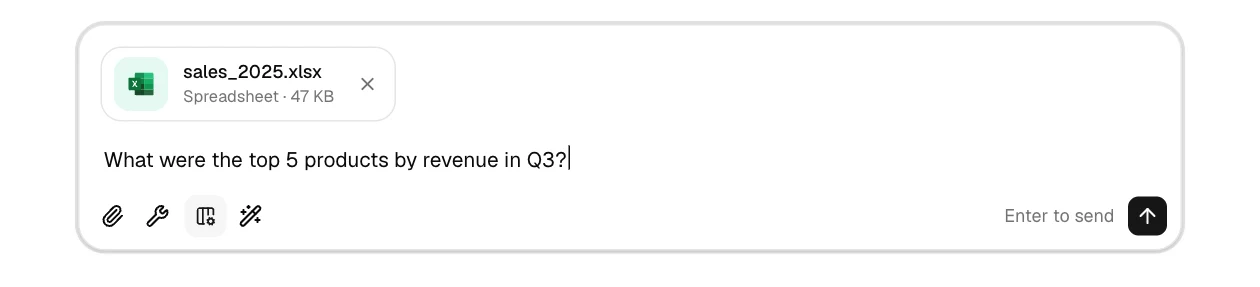
### Ask a question
Type your question as you'd ask a colleague and press **Enter**:
### Read the answer
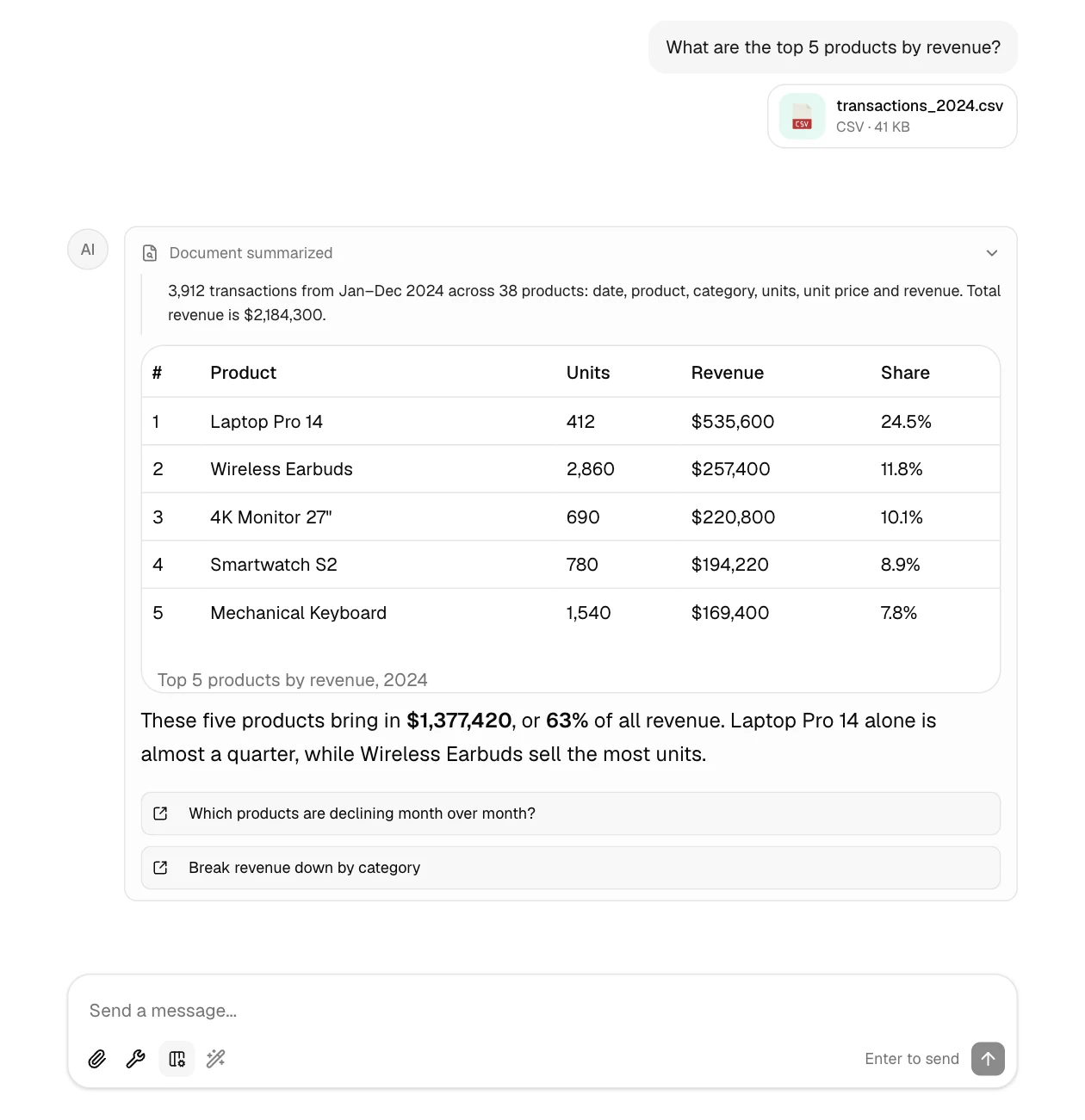
GPTExcel first reads your file to learn its structure, then answers. Depending on the question, the answer
can include a table, a chart, a formula or a file to download:
### Keep going
Every answer ends with a few suggested follow-up questions. Click one to send it, or type your own. The
conversation keeps the context, so you can say things like *"now only for 2025"* or *"chart that"*.
## Example: asking for a formula
You don't need a file to get a formula. Describe what it should calculate:
```text
Sum column B where column A is "Complete" and the date in column C is this month
```
GPTExcel returns something like:
```text title="Excel formula"
=SUMIFS(B:B, A:A, "Complete", C:C, ">="&EOMONTH(TODAY(),-1)+1, C:C, "<="&EOMONTH(TODAY(),0))
```
For formulas without a file, the [Formulas tool](https://gptexcel.uk/tools/formulas) is often quicker; see
[formula generation](https://gptexcel.uk/docs/guides/formulas).
Mention column names or letters and sheet names when you know them. The more context you give, the less
GPTExcel has to infer.
## Next steps
- [AI Chat guide](https://gptexcel.uk/docs/guides/ai-chat): what Chat can do and how to prompt it
- [Formula generation](https://gptexcel.uk/docs/guides/formulas): generate, explain and optimize formulas
- [Pivot Builder](https://gptexcel.uk/docs/guides/pivot-builder): native Excel pivot tables from a sentence
- [Slide Deck Builder](https://gptexcel.uk/docs/guides/slide-deck-builder): a PowerPoint or PDF deck from your data
- [File uploads](https://gptexcel.uk/docs/guides/file-uploads): formats, limits and downloads
---
# AI Chat
URL: https://gptexcel.uk/docs/guides/ai-chat
> How GPTExcel's chat works, what its answers can contain, and how to write prompts that get the result you want.
Chat is the core of GPTExcel. Attach a spreadsheet, ask for what you need in plain English, and keep the
conversation going until you have the answer, the formula or the file.
## How it works
1. **It reads your file first.** When you attach a file, GPTExcel summarizes its structure (sheets,
columns, data types) before doing anything else. You'll see a *Document summarized* step at the top of
the answer.
2. **It computes, rather than estimates.** Totals, averages, rankings and other figures come from code it
runs on your data. Click the *Ran Python* step in an answer to see exactly what it ran.
3. **It answers in the most useful form.** A short explanation, plus a table, a chart, a formula or a file
to download, whichever fits the question.

## What an answer can contain
| You ask for | You get |
| --- | --- |
| A figure or a comparison | The answer, with the table it came from |
| A chart | An interactive chart you can restyle with **Configure** and save with **Download PNG** |
| A formula | The formula in a copyable block, with how it works |
| A brand-new function | A lookup in the official docs first, with a warning if it's Beta-only (see [New and preview functions](https://gptexcel.uk/docs/guides/new-functions)) |
| A pivot table | A workbook with a native Excel pivot table (see [Pivot Builder](https://gptexcel.uk/docs/guides/pivot-builder)) |
| A presentation | A slide deck with charts, to download as PowerPoint or PDF (see [Slide Deck Builder](https://gptexcel.uk/docs/guides/slide-deck-builder)) |
| Cleaned or reshaped data | A new file to download |
| A report or summary | Formatted text with headings, tables and recommendations |
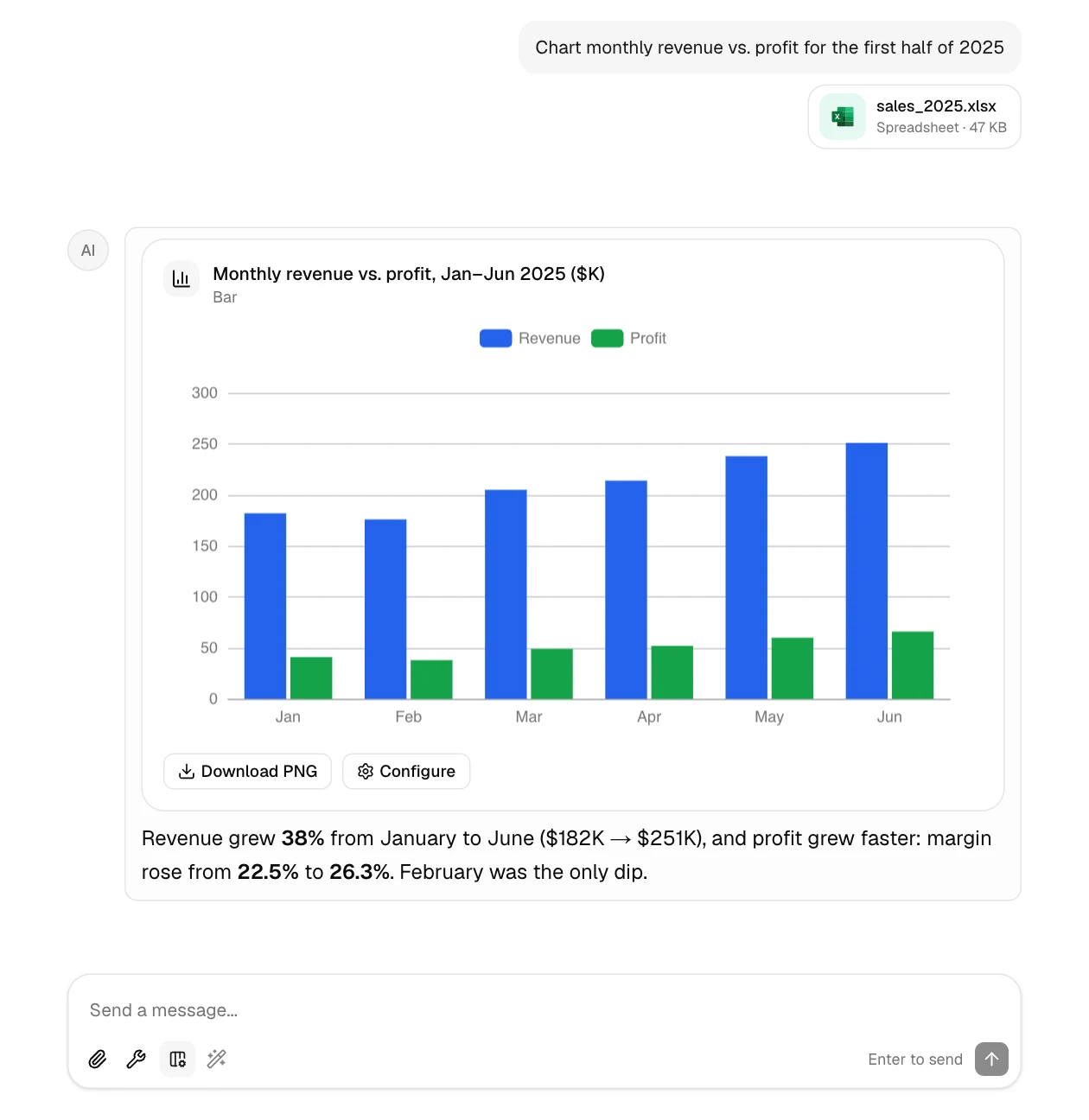
Every answer ends with a few **suggested follow-ups**. Click one to send it.
## Good prompts
Say what result you want, which data to use, and any rule that matters. Specific prompts need less guessing:
| Instead of | Try |
| --- | --- |
| "analyze this" | "Which region had the highest sales growth from 2024 to 2025?" |
| "fix the data" | "Remove duplicate rows based on the Email column, keeping the newest" |
| "make a chart" | "Create a bar chart of monthly revenue for 2025" |
| "pivot" | "Pivot table of total Profit with Region as rows and Category as columns" |
| "make slides" | "A 5-slide Q3 review for leadership: headline numbers, monthly trend, next steps" |
Not sure how to phrase it? Type a rough version and click the **magic wand** in the message box to have
GPTExcel rewrite it into a clearer prompt. It needs a few words to work with.
## Agents
The **Agents** menu (the hammer in the message box) shows the specialist agents Chat can call:
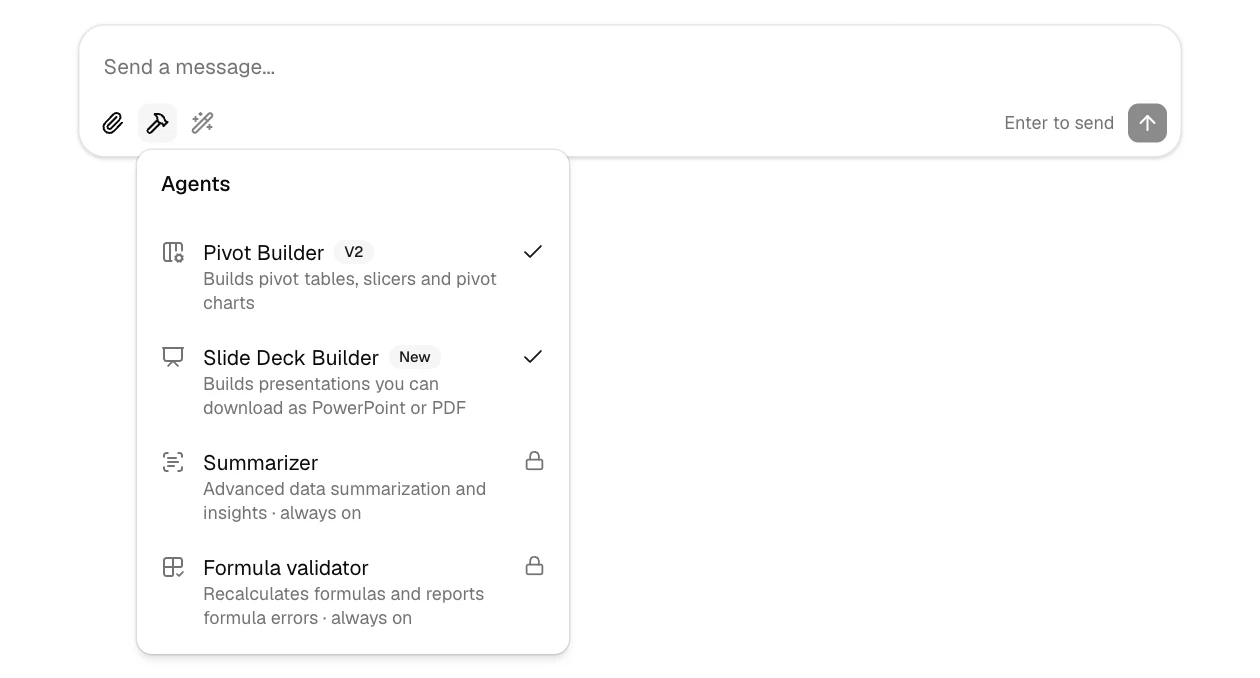
- **Pivot Builder** builds pivot tables, slicers, timelines and pivot charts. It's on by default; switch it
off here if you don't want Chat to use it.
- **Slide Deck Builder** turns your data into a presentation you download as PowerPoint or PDF. On by default,
and can be switched off the same way.
- **Summarizer** reads and summarizes each file you attach. Always on.
- **Formula validator** recalculates a workbook's formulas and reports errors. Always on.
## Managing a conversation
- **Edit a message** to change your question; the answer is regenerated from there.
- **Retry** an answer to get a new version of it.
- **Stop** a long answer with the square button while it's being written.
- **History.** Every chat is saved. Find it in the sidebar, search your chats, and pin up to 10 you use often with the pin icon at the top of a chat.
## Personalize answers
In **Settings → General**, pick what best describes your work and add **Personalization**: anything
GPTExcel should know about you or how you like answers, such as *"I manage budgets in Excel. Keep
explanations brief and show formulas."* It applies to every new chat.
## Share a conversation
Click the **share** icon at the top of a chat to create a read-only link. Anyone with the link can read the
conversation without signing in, and files GPTExcel created in it can be downloaded. The files you uploaded
are never downloadable from a shared link. Manage or revoke your links in **Settings → Data controls**.
---
# File Uploads
URL: https://gptexcel.uk/docs/guides/file-uploads
> Which files you can upload to GPTExcel, how to attach them, the limits on each plan, and how to download the files it creates.
## Attaching files
In the chat, attach a file in any of three ways:
- Click the **paperclip** in the message box and pick the file.
- **Drag** the file anywhere onto the chat.
- **Paste** a copied file or screenshot into the message box.
The file uploads while you type. Its tile fills up as it goes, and it's ready when it shows the file type
and size:

You can attach up to **5 files per message**, for example two exports to merge.
## Supported formats
| Format | Extensions | Notes |
| --- | --- | --- |
| Excel workbook | `.xlsx`, `.xls`, `.xlsb` | Every sheet is read |
| Excel macro-enabled and templates | `.xlsm`, `.xltx`, `.xltm` | Macros are never run; the data is read |
| CSV and TSV | `.csv`, `.tsv` | UTF-8 recommended |
| Images | `.png`, `.jpg`, `.jpeg`, `.gif`, `.webp` | For example a photo or screenshot of a table, which GPTExcel can turn into a spreadsheet |
## Limits
Limits depend on your plan:
| Plan | Max file size | Files per chat |
| --- | --- | --- |
| Free | 5 MB | 10 |
| Pro | 50 MB | 20 |
| Pro Plus | 100 MB | 30 |
See [pricing](https://gptexcel.uk/pricing) for everything else each plan includes.
Uploading a file with the same name as one already in the chat keeps both: the new one is saved as
`name-v2`, then `name-v3`, and so on, so you can say which version you mean.
## Downloading results
When GPTExcel creates a file, such as a cleaned dataset, a report or a workbook with a pivot table, it appears
in the answer as a card. Click the download icon to save it:
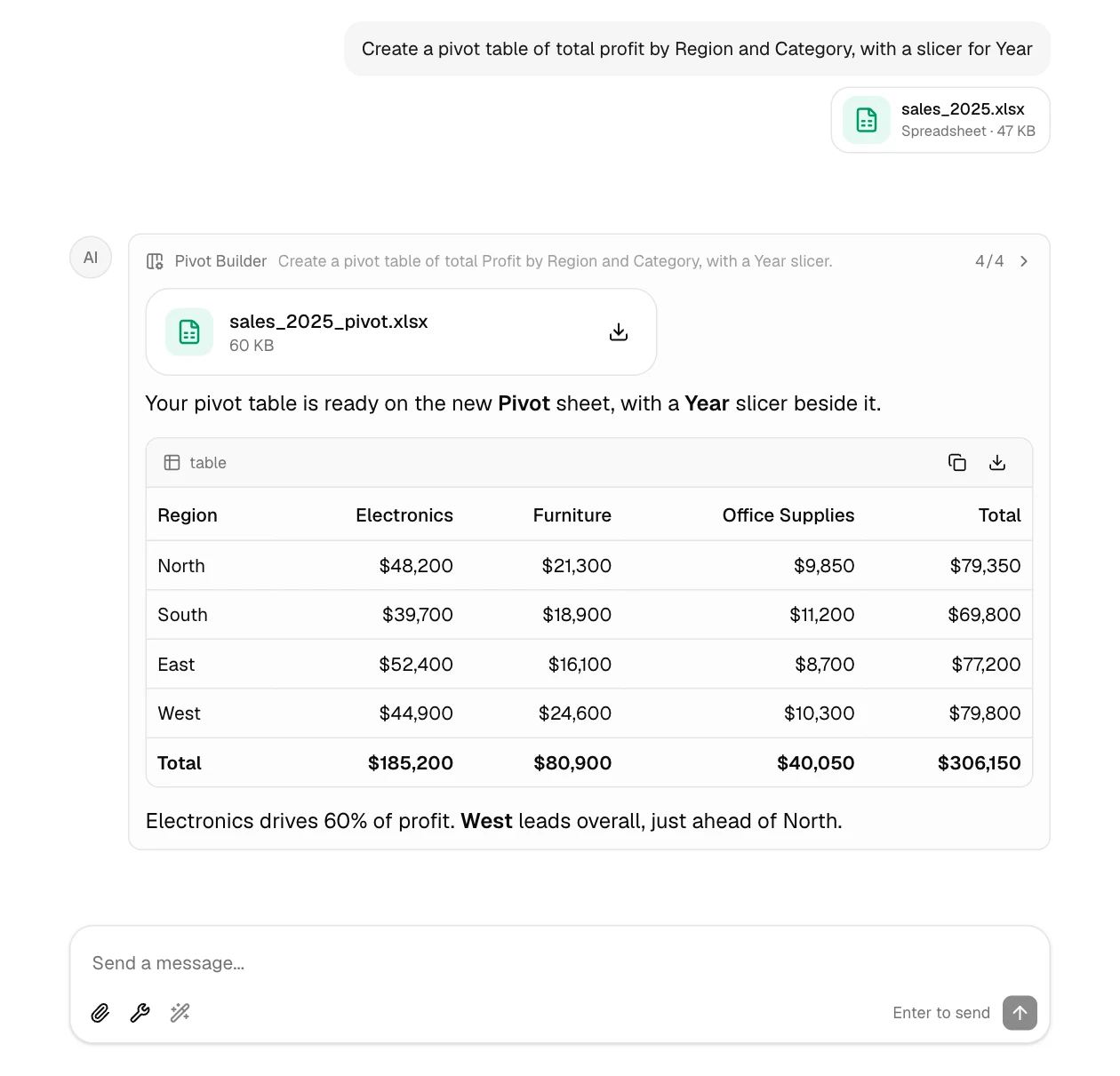
Most tables in an answer also have their own **copy** and **download** buttons, so you can take a small
result without asking for a file.
Uploaded files stay in your account until you delete the chat or your account. They're never downloadable
from a shared chat link. See the [Privacy Policy](https://gptexcel.uk/policy) for details.
---
# Formula Generation
URL: https://gptexcel.uk/docs/guides/formulas
> Generate, explain and optimize formulas for Excel, Google Sheets, LibreOffice Calc and Airtable from plain English.
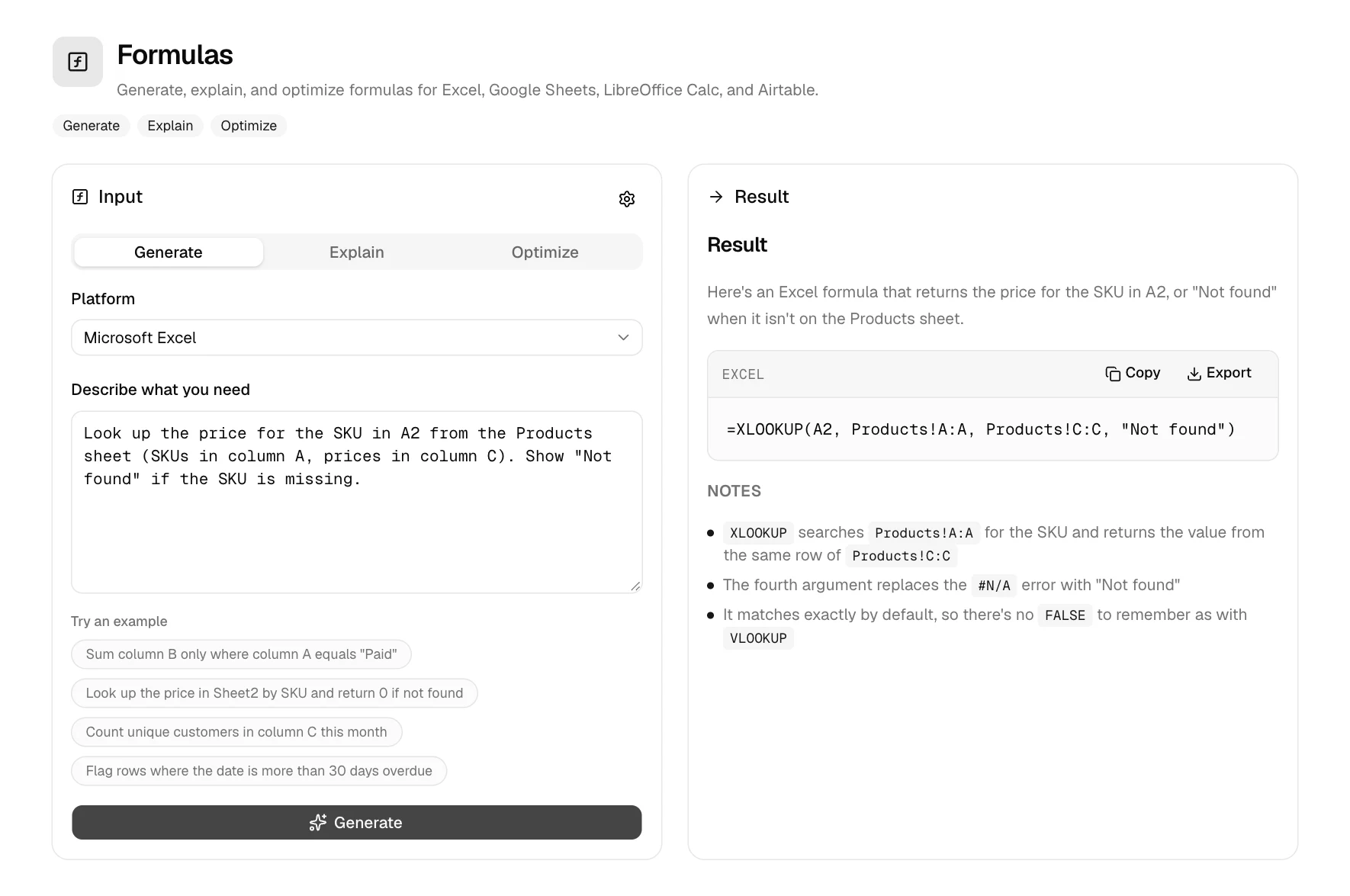
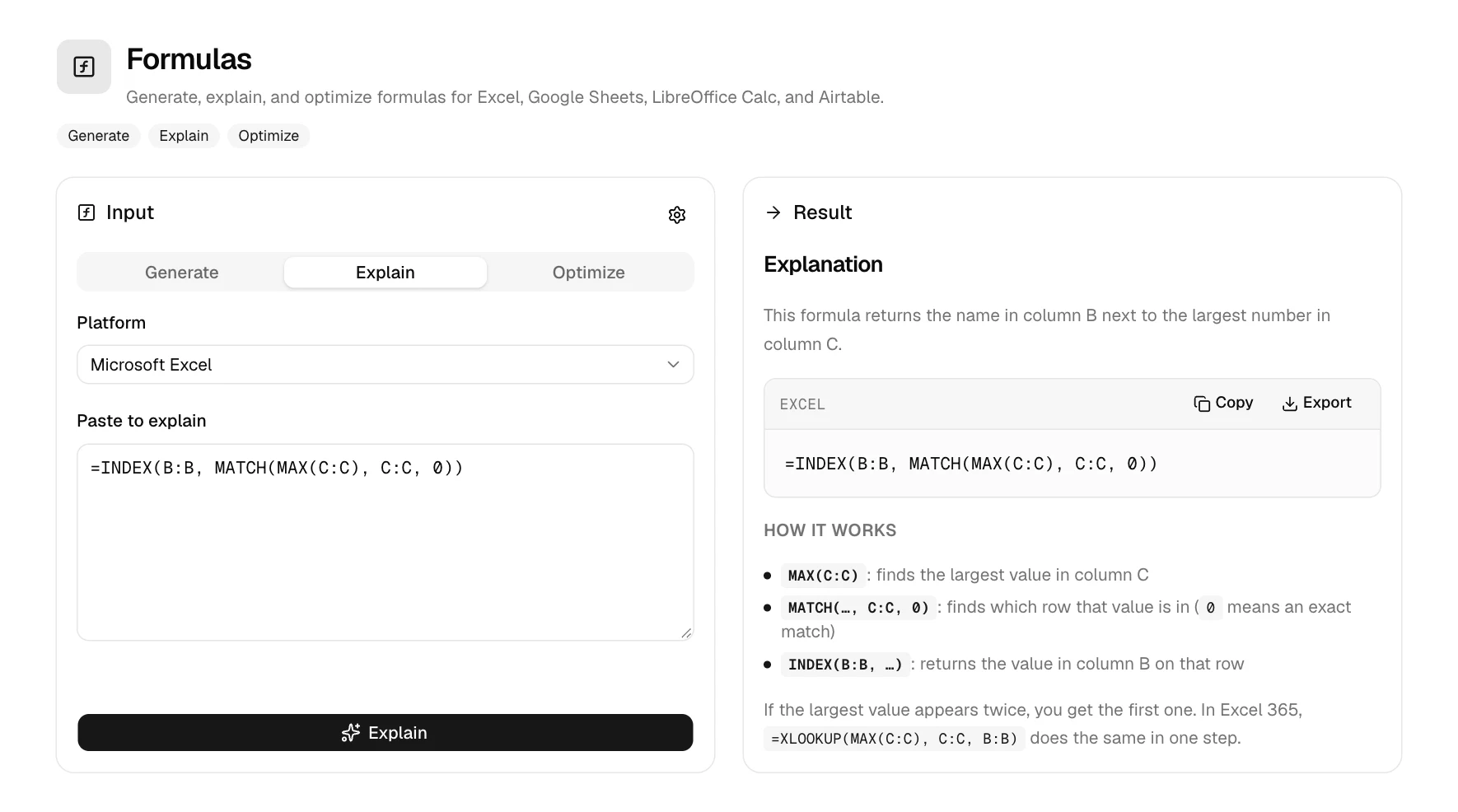
Describe the calculation you need and GPTExcel writes the formula. Paste a formula you don't understand and
it explains it step by step. There are two places to do this:
- **The [Formulas tool](https://gptexcel.uk/tools/formulas)**, for a formula on its own. Quickest when you know what you want.
- **Chat**, when the formula depends on a file you've uploaded. GPTExcel can see your real column names and
sheet names.
## The Formulas tool
### Pick a mode
- **Generate**: describe the result, get the formula.
- **Explain**: paste a formula, get a plain-English walkthrough of each part.
- **Optimize**: paste a slow or messy formula, get a cleaner, faster version and what changed.
### Pick your platform
Microsoft Excel, Google Sheets, LibreOffice Calc or Airtable. Functions and syntax differ between them, so
the formula is written for the one you choose.
### Describe it, or paste it
Then click the button under the box. Short on ideas? Click one of the examples to fill it in.
### Formula settings
Click the **settings** icon next to *Input* to save your defaults to your account:
| Setting | What it changes |
| --- | --- |
| Platform | Excel, Google Sheets, LibreOffice Calc or Airtable |
| Formula language | Function names in your spreadsheet's language, for example `SUMME` instead of `SUM` in German Excel |
| Argument separator | Comma (`,`) or semicolon (`;`), matching your regional settings |
| Version | Which Excel version to target, so you only get functions you have |
| Response language | The language of the explanation |
## Example prompts
### Lookups
```text
Find the price in Sheet2 column C for the product ID in A2
```
```text title="Excel formula"
=XLOOKUP(A2, Sheet2!A:A, Sheet2!C:C, "Not found")
```
### Conditional totals
```text
Average of column D for rows where B is "West" and C is above 100
```
```text title="Excel formula"
=AVERAGEIFS(D:D, B:B, "West", C:C, ">100")
```
### Text
```text
Extract the domain from the email address in A2
```
```text title="Excel formula"
=MID(A2, FIND("@", A2) + 1, LEN(A2))
```
### Dates
```text
Flag rows where the due date in C2 is more than 30 days ago and status in D2 isn't "Paid"
```
```text title="Excel formula"
=IF(AND(TODAY() - C2 > 30, D2 <> "Paid"), "Overdue", "")
```
## Formulas in Chat
In Chat, GPTExcel can write formulas into a workbook for you, not just show them. After it creates or edits
formulas, the **Formula validator** recalculates the workbook and checks every formula for errors such as
`#REF!` or `#DIV/0!` before you download it.
Ask Chat about a function that's newer than the AI, like Excel's `FLATTEN`, and it checks Microsoft's or
Google's documentation first, warns you if the function is Beta-only, and links the source. See
[New and preview functions](https://gptexcel.uk/docs/guides/new-functions).
Name the cells, columns and sheets involved when you know them ("price in Products!C:C"). A formula built
on your real layout needs no adjusting.
## More generators
The same generate, explain and optimize modes are available for [scripts](https://gptexcel.uk/tools/scripts) (VBA, Google Apps
Script, LibreOffice Basic, Airtable scripts and Python), [SQL](https://gptexcel.uk/tools/sql) and [regex](https://gptexcel.uk/tools/regex).
---
# New and preview functions
URL: https://gptexcel.uk/docs/guides/new-functions
> How Chat answers about Excel and Google Sheets functions released after the AI was trained, what "preview" means, and why answers link their source.
AI models only know the functions that existed when they were trained. Microsoft and Google add new ones
every few months, so a model can confidently say a function doesn't exist when it shipped last month.
In Chat, GPTExcel checks first. Ask about a function that might be newer than the AI, or one it isn't sure
exists in your app, and it looks the function up before answering.
## How a lookup works
### It checks the official docs
GPTExcel searches Microsoft's documentation for Excel functions and Google's for Google Sheets functions.
A function counts as found only when one of those official pages describes it.
### You see what it found
A **Looked up** line appears above the answer. Expand it for the function's syntax, which versions have it,
and links to the official pages.
### The answer uses it
The explanation and formulas are based on what the documentation says, and end with a link to the source.
Once a function has been looked up, the next person who asks gets the answer straight away.
## Preview functions
Some functions are released to **Insider** or **Beta Channel** builds first. Chat marks these as
**preview** and starts its answer with a warning, before any formula:
- the function may not work in your version of Excel yet;
- its syntax can still change before it reaches everyone.
When there's a function that works today, such as `TOCOL` instead of Excel's `FLATTEN`, the answer offers
it too.
## Tell it which app you use
Some functions exist in only one app, and some share a name but behave differently: `FLATTEN` in Google
Sheets turns a range into one column, while Excel's works on lists inside cells. Name your app in the
question ("in Excel", "in Google Sheets"). If you don't and it matters, Chat asks.
- Lookups cover **Microsoft Excel** and **Google Sheets** functions, in Chat.
- "Not found" is double-checked before Chat says a function doesn't exist.
- Like any AI answer, test a new formula on a few rows before relying on it.
---
# Pivot Builder
URL: https://gptexcel.uk/docs/guides/pivot-builder
> Create native Excel pivot tables, slicers, timelines and pivot charts by describing them in plain English, and edit ones already in your workbook.
Pivot Builder is an agent inside Chat that builds **real Excel pivot objects**: pivot tables, slicers,
timelines and pivot charts. They aren't pictures or static summaries. You download a workbook, open it in
Excel, and filter, refresh and rearrange them like any pivot table you'd build by hand.
## What it can do
| Object | Examples |
| --- | --- |
| Pivot table | "Total Revenue by Region and Month", "Average order value by Customer Type" |
| Slicer | Clickable filter buttons for a field, which can drive several pivot tables at once |
| Timeline | A date-range filter, for date fields |
| Pivot chart | A chart bound to a pivot table, which updates with it |
| Calculated field | A measure from a formula, such as "Margin = Profit / Revenue" |
It can also **change or delete** these objects in a workbook that already has them, for example
*"switch the SalesPivot to Average instead of Sum"* or *"delete the Year slicer"*.
## How to use it
### Check it's on
Pivot Builder is on by default. To check, click the **hammer** in the message box to open the Agents menu:
Pivot Builder has a tick when it's on.
### Attach your workbook
It works on `.xlsx`, `.xlsm`, `.xltx` and `.xltm` files under 20 MB, and can also build a new workbook from
scratch. The first row of your data should be the headers.
### Describe the pivot
Say what goes in the **rows**, the **columns**, the **values** (and how to total them), and any **filters**,
slicers or charts:
```text
Create a pivot table of total Profit with Region as rows and Category as columns.
Add a slicer for Year and a clustered column pivot chart next to it.
```
### Download the workbook
Pivot Builder shows its progress as it works, then GPTExcel hands you the updated workbook as a download and
summarizes what it built:

## Tips
- **Name the fields exactly** as your column headers are spelled. If you're not sure how to lay the pivot out,
describe the question you're trying to answer and GPTExcel will suggest a layout.
- **Say where it goes** if it matters, for example *"on a new sheet called Summary"*.
- **One slicer for several pivots:** ask for the pivots first, then *"add one Region slicer connected to all
three"*.
- **Timelines need real dates.** If your dates are stored as text, ask GPTExcel to convert them first.
The pivot objects are native Excel features, so open the downloaded workbook in Microsoft Excel to use them
fully.
---
# Slide Deck Builder
URL: https://gptexcel.uk/docs/guides/slide-deck-builder
> Turn an Excel or CSV file into a presentation with native charts, then download it as an editable PowerPoint (.pptx) or a PDF.
Slide Deck Builder is an agent inside Chat that builds **presentations from your data**. It reads the
spreadsheet you attach, works out the figures each slide needs, and writes the deck slide by slide while you
watch. You download it as an editable PowerPoint file or a PDF.
## What it can do
| Part of the deck | Examples |
| --- | --- |
| Slides | Title, agenda, KPI strip, chart with commentary, comparison, table, timeline, next steps: up to 40 slides |
| Charts | Column, bar, line, area, pie, doughnut and scatter, drawn from your numbers |
| Theme | One palette and font set for the whole deck, changed in one request |
| Downloads | PowerPoint (.pptx) with editable text, tables and native charts, or PDF |
It can also **change a deck it built**, for example *"make slide 5 a column chart"*, *"switch the accent
colour to teal"* or *"add a slide on churn after slide 3"*. It changes only what you ask.
## How to use it
### Check it's on
Slide Deck Builder is on by default. To check, click the **hammer** in the message box to open the Agents
menu: Slide Deck Builder has a tick when it's on.
### Attach your data
Attach the Excel or CSV file the deck should be built from. You can also give the figures in your message, or
ask for a deck with no data at all, such as a training outline.
### Describe the presentation
Say who it's for, how many slides, and what each part should cover:
```text
Make a 5-slide Q3 business review for leadership from this file:
headline numbers, the monthly revenue trend, Q2 vs Q3, and next steps for Q4.
```
### Review and download
Each slide appears in the chat as soon as it's written. When the deck is finished, use the arrows to page
through it, **Open** to see it full screen, and **PowerPoint** or **PDF** to download it.
## Tips
- **Name the audience and the message.** "For the board, arguing for a bigger Q4 budget" gives better slides
than "a deck about sales".
- **Long decks may stop early.** If a deck runs out of time, the slides it wrote are saved and a
**Continue** button finishes the rest.
- **Restyle in one request.** Ask for new colours or fonts once and every slide follows.
- **Edit in PowerPoint afterwards.** Text, tables and charts in the .pptx are real PowerPoint objects, so you
can change the wording or the chart data there.
---
# Blog
---
# FLATTEN in Excel vs Google Sheets: same name, different job
URL: https://gptexcel.uk/blog/flatten-excel-vs-google-sheets
Published: 2026-10-03
> Google Sheets' FLATTEN turns a range into one column; Excel's new FLATTEN spreads lists inside cells into the grid. What each does, and the Excel formula to use instead.
Both Google Sheets and Excel now have a function called `FLATTEN`, and they don't do the same thing. If you
copy a Sheets formula into Excel, or follow a Sheets tutorial in Excel, the result won't be what you expect.
| | Google Sheets `FLATTEN` | Excel `FLATTEN` |
| --- | --- | --- |
| Works on | Ranges | Lists and arrays held inside cells |
| Returns | One column | The items spread across the grid |
| Available | All of Google Sheets | Excel's Beta Channel only (October 2026) |
## Google Sheets: a range into one column
```text
FLATTEN(range1, [range2, ...])
```
Sheets' `FLATTEN` takes one or more ranges and returns every value in a single column, reading each row left
to right before moving down. With A1:B2 holding `1, 2` and `3, 4`:
```text
=FLATTEN(A1:B2)
```
returns `1`, `2`, `3`, `4` down one column. Blank cells are kept, not skipped
([Google Docs Editors Help](https://support.google.com/docs/answer/10307761)).
## Excel: lists inside cells
In September 2026 Excel gained cells that can hold **lists and arrays** (several values in one cell), and a
`FLATTEN` function that works on them:
```text
FLATTEN(array, [pad_value], [levels])
```
It removes one or more levels of nesting, so each cell's list spreads out into the grid. `pad_value` fills
the gaps when some lists are shorter, and `levels` sets how many levels to remove.
It's only in Excel's **Beta Channel** for now: Windows Version 2610 (Build 20520.20000) or later and Mac
Version 16.114 (Build 26092111) or later ([Microsoft 365 Insider blog](https://techcommunity.microsoft.com/blog/microsoft365insiderblog/put-multiple-values-in-one-cell-with-lists-and-arrays-in-excel/4559395)).
## The Excel equivalent of Sheets' FLATTEN: TOCOL
To turn a range into one column in Excel, the way Sheets' `FLATTEN` does, use `TOCOL`. It's in Excel for
Microsoft 365 and Excel 2024 (Windows and Mac):
```text
TOCOL(array, [ignore], [scan_by_column])
```
```text
=TOCOL(A1:B2)
```
returns `1`, `2`, `3`, `4`, reading row by row like Sheets. Two options Sheets' `FLATTEN` doesn't have:
- **ignore**: `1` skips blanks, `2` skips errors, `3` skips both.
- **scan_by_column**: `TRUE` reads down each column instead of across each row.
```text
=TOCOL(A1:D10, 1)
```
turns A1:D10 into one column without the blank cells.
## Ask in the app you're using
This is a common way for formulas to go wrong: the same function name, two apps, two behaviors. When you ask
GPTExcel about a function and don't say which app, it asks. When the function is newer than the AI, it checks
Microsoft's or Google's documentation first and tells you if it's Beta-only.
---
# New Excel functions in 2026: FLATTEN, IMPORTTEXT and GROUPBY
URL: https://gptexcel.uk/blog/new-excel-functions-2026
Published: 2026-10-03
> What Excel's newer functions do, their syntax, and which versions have them today, including FLATTEN and IMPORTTEXT, which are still Beta-only.
Microsoft keeps adding worksheet functions to Excel, and they arrive in stages: first to **Insider** (Beta
Channel) builds, later to everyone on Microsoft 365. That makes two questions worth asking before you use a
new one: *what does it do*, and *does my Excel have it yet?*
Here are three that people ask us about, with the answer to both.
| Function | What it does | Available in (October 2026) |
| --- | --- | --- |
| `FLATTEN` | Spreads lists held inside cells out into the grid | Beta Channel only |
| `IMPORTTEXT` | Imports a CSV, TXT or TSV file as a dynamic array | Insiders Beta only |
| `GROUPBY` | Groups rows and aggregates values in one formula | Microsoft 365 |
## FLATTEN: lists inside cells
In September 2026 Microsoft announced that Excel cells can hold **lists and arrays**: several values in one
cell, kept separate for filtering and calculation. `FLATTEN` is one of the new functions that came with them.
```text
FLATTEN(array, [pad_value], [levels])
```
- **array**: the nested array to flatten.
- **pad_value**: what to put in the gaps when some rows have fewer items, for example `""` for blanks.
- **levels**: how many levels of nesting to remove.
If B2:B4 each hold a list of tags, this spills every cell's tags across its own row, with blanks where a
row has fewer tags:
```text
=FLATTEN(B2:B4, "")
```
**Who has it:** Excel's Beta Channel only, on Windows Version 2610 (Build 20520.20000) or later and Mac
Version 16.114 (Build 26092111) or later ([Microsoft 365 Insider blog](https://techcommunity.microsoft.com/blog/microsoft365insiderblog/put-multiple-values-in-one-cell-with-lists-and-arrays-in-excel/4559395)).
Sheets' `FLATTEN` turns a range into a single column. In Excel, `TOCOL` does that today. See
[FLATTEN in Excel vs Google Sheets](https://gptexcel.uk/blog/flatten-excel-vs-google-sheets).
## IMPORTTEXT: a text file as a dynamic array
`IMPORTTEXT` reads a CSV, TXT or TSV file and returns its contents as a dynamic array, without going through
the Text Import wizard or Power Query.
```text
IMPORTTEXT(path, [delimiter], [skip_rows], [take_rows], [encoding], [locale])
```
- **path**: a local file path or URL.
- **delimiter**: the column separator. Tab if you leave it out.
- **skip_rows** / **take_rows**: rows to skip or keep. Negative numbers count from the end.
- **encoding**: UTF-8 if you leave it out.
- **locale**: how dates and numbers are read. Your system's locale if you leave it out.
```text
=IMPORTTEXT("C:\Data\sales.csv", ",")
```
**Who has it:** Microsoft's documentation lists it for Microsoft 365 subscribers in the Insiders Beta
channel, on Excel for Windows Version 2502 (Build 18604.20002) or later
([IMPORTTEXT function](https://support.microsoft.com/en-us/office/importtext-function-119f9145-f275-4713-a2ba-2a11ef83f6d0)).
Microsoft also documents an `IMPORTCSV` function for CSV files.
## GROUPBY: a summary table in one formula
`GROUPBY` groups rows by one or more fields and aggregates a value for each group: a pivot-table-style
summary that recalculates like any formula.
```text
=GROUPBY(B2:B100, C2:C100, SUM)
```
That returns each distinct value in B with the total of C beside it. Optional arguments control headers,
totals, sort order and filtering.
**Who has it:** Excel for Microsoft 365 on Windows, Mac and the web
([GROUPBY function](https://support.microsoft.com/en-us/excel/functions/groupby-function)).
## Why AI tools get new functions wrong
An AI model only knows the functions that existed when it was trained. Ask one about `FLATTEN` and a model
trained before September 2026 may tell you Excel doesn't have it.
GPTExcel's Chat checks first. When you ask about a function that may be newer than the AI, it looks it up in
Microsoft's or Google's documentation, opens its answer with a warning if the function is Beta-only, and
links the source.
More on how this works: [New and preview functions](https://gptexcel.uk/docs/guides/new-functions).
---
# How to clean messy spreadsheet data with AI, step by step
URL: https://gptexcel.uk/blog/clean-messy-data
Published: 2026-07-02
> Duplicates, stray spaces, dates stored as text, five spellings of one country. A four-step workflow to find and fix them with GPTExcel, and check the result.
Data exported from a CRM, a form or another team's workbook is rarely ready to use. The same customer appears
twice. Names carry invisible spaces that break lookups. Dates are text, so they sort wrong. "USA", "U.S." and
"United States" count as three countries.
Fixing that by hand means a helper column per problem and a lot of scrolling. Here's how to do it in a few
messages with GPTExcel instead, using a 12,410-row customer export as the example.
## Step 1: Upload the file and ask for an audit
Attach the file (click the paperclip, or drag it onto the chat) and ask what's wrong before asking for any fixes:
```text
What data quality issues do you see in this file?
```
GPTExcel reads the whole file first, then checks it. Here it reports each issue with the column it affects
and how many rows have it:
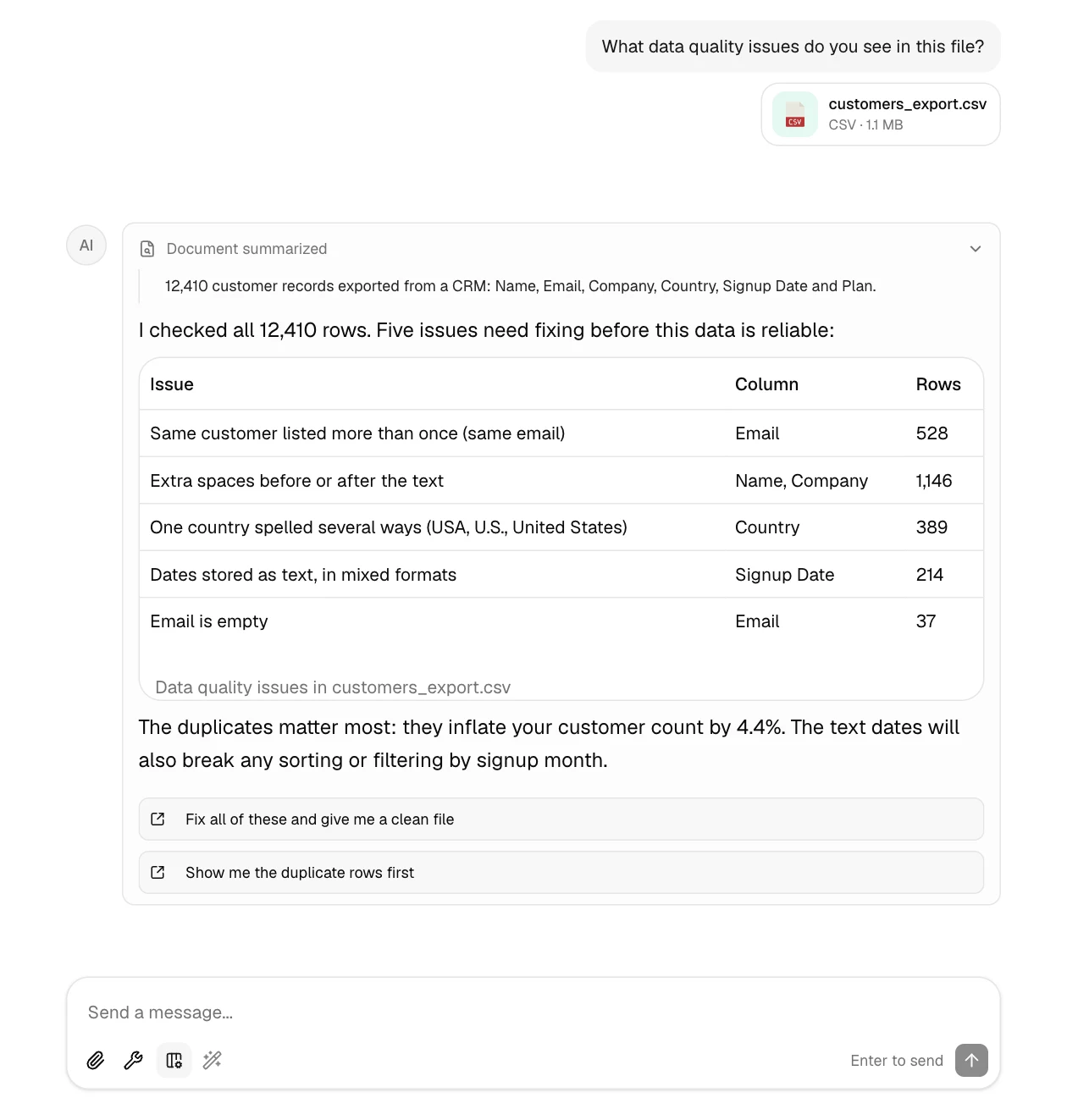
Starting with an audit has two benefits. You find problems you didn't know about, and you get the "before"
numbers to check the cleaned file against.
## Step 2: Fix everything in one instruction
Now say exactly how each problem should be fixed. The more specific the rules, the less guessing:
```text
Remove duplicates by Email (keep the newest Signup Date), trim spaces, use one
spelling per country, convert Signup Date to real dates, and flag rows with no email
```
A few decisions are worth spelling out, because there's no single right answer:
| Problem | Decide |
| --- | --- |
| Duplicates | Which column identifies a duplicate, and which copy to keep (newest, oldest, most complete) |
| Missing values | Delete the rows, fill them with a default, or keep them and flag them |
| Inconsistent names | Which spelling wins, for example "United States" |
| Dates | The format you want them in, if not your spreadsheet's default |
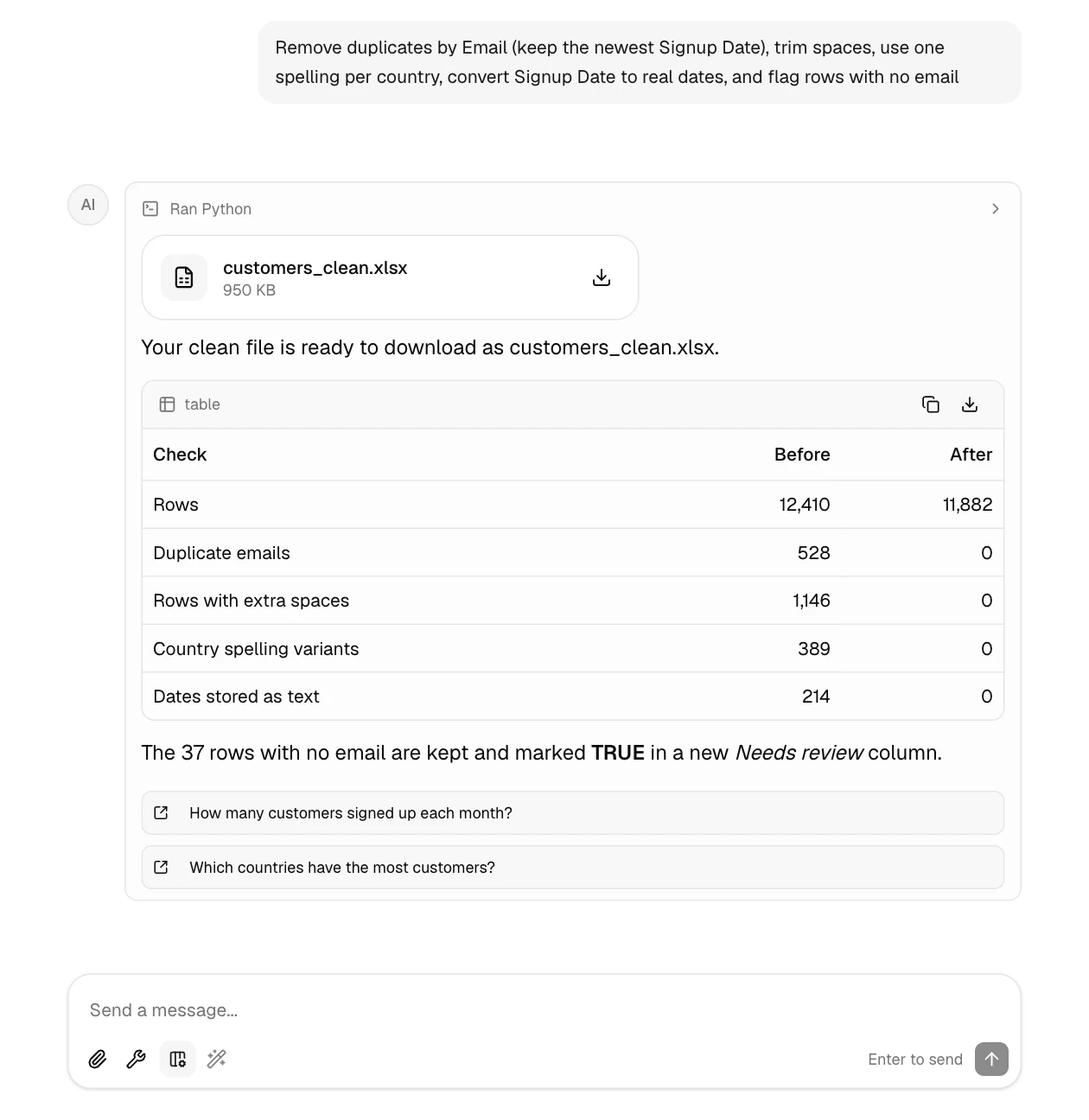
GPTExcel writes and runs the cleaning code, then gives you the cleaned data as a new file to download:
## Step 3: Check the result
Don't take a cleaned file on trust. Three quick checks:
1. **Compare against the audit.** Every issue from step 1 should now be at 0. The row count should drop by
exactly the number of duplicates: here 12,410 − 528 = 11,882.
2. **Look at how it was done.** Click **Ran Python** above the file to see the exact code that produced it.
You can see which rows counted as duplicates and which copy was kept.
3. **Spot-check a few rows.** Open the file and find one duplicate customer from the original. There should
be one row left, with the newest signup date.
If something's off, say so in plain English, for example *"keep the oldest signup instead"*, and you get a
corrected file.
## Step 4: Put the clean data to work
Once the data is clean, keep going in the same chat. The follow-up questions under each answer are a good
start: signups by month, customers by country, or a pivot table of plans by region.
## Common cleaning requests
These work well as starting points. Swap in your own column names:
- `Split Full Name into First Name and Last Name`
- `Standardize phone numbers to the format +1 555 123 4567`
- `Convert the Amount column from text like "$1,200.50" to numbers`
- `Merge the two uploaded files on Customer ID and keep every row from the first`
- `Find rows where End Date is before Start Date`
- `Remove empty rows and columns, then sort by Region and Date`
Keep the file you uploaded until you've checked the cleaned one. If you need to undo a decision, you can
start again from the original.
---
# Five modern Excel formulas every analyst should know
URL: https://gptexcel.uk/blog/five-formulas
Published: 2026-06-28
> XLOOKUP, SUMIFS, LET, FILTER and TEXTSPLIT replace whole workflows. Worked examples for each, the mistakes to avoid, and which Excel versions have them.
Excel has added functions over the last few years that make older patterns unnecessary: nested
`VLOOKUP`s, helper columns, and the Text to Columns wizard. These five cover a large share of everyday analysis.
Each one below comes with a small worked example you can paste into a blank sheet.
## 1. XLOOKUP: one lookup instead of three
`XLOOKUP` finds a value in one column and returns the matching value from another. It replaces `VLOOKUP`,
`HLOOKUP` and most `INDEX`/`MATCH` combinations.
Say the **Products** sheet lists SKUs in column A and prices in column C, and your orders have a SKU in A2:
```text title="Price for the SKU in A2"
=XLOOKUP(A2, Products!A:A, Products!C:C, "Not found")
```
Why it's better than `VLOOKUP`:
- It matches exactly by default, so there's no `FALSE` to forget.
- The return column can sit to the left of the lookup column.
- Inserting a column in the middle doesn't break it, because there's no column number to count.
- The fourth argument replaces `#N/A` with your own text.
## 2. SUMIFS: totals with conditions
`SUMIFS` adds up the rows that meet every condition you give it. Note the order: the column to add comes
**first**, then pairs of *range, condition*.
| | A | B | C |
| --- | --- | --- | --- |
| 1 | Region | Units | Revenue |
| 2 | West | 120 | 3,600 |
| 3 | East | 150 | 4,500 |
| 4 | West | 80 | 2,400 |
| 5 | West | 210 | 6,300 |
```text title="Revenue from West-region rows with more than 100 units"
=SUMIFS(C2:C5, A2:A5, "West", B2:B5, ">100")
```
The result is **9,900**: rows 2 and 5 match, and row 4 is West but only 80 units. `COUNTIFS` and
`AVERAGEIFS` take the same arguments when you need a count or an average instead.
## 3. LET: name the parts of a long formula
`LET` gives names to intermediate results, so a long formula reads like a short calculation and each part
is computed once. With a price in B2 and a discount in C2:
```text title="Discounted price plus 15% tax"
=LET(net, B2 - C2, tax, net * 15%, net + tax)
```
With a price of 200 and a discount of 20, `net` is 180, `tax` is 27, and the result is **207**. Without `LET`
you'd write `B2 - C2` twice, and change it in two places later.
## 4. FILTER: every matching row, not just the first
A lookup returns one match. `FILTER` returns **all** of them, as a live table that spills into the cells below:
```text title="Every open ticket, or a message when there are none"
=FILTER(A2:D100, C2:C100 = "Open", "No open tickets")
```
Two things to know:
- Leave room for the results. If a value is in the way, you get `#SPILL!`.
- Without the third argument, a filter with no matches returns `#CALC!`.
Combine conditions by multiplying them (both must be true) or adding them (either can be true):
`(C2:C100 = "Open") * (D2:D100 > 5)`.
## 5. TEXTSPLIT: Text to Columns as a formula
`TEXTSPLIT` breaks text apart at a delimiter. With `Smith, Jane, London` in A2:
```text title="Split on comma and space"
=TEXTSPLIT(A2, ", ")
```
The result spills across three cells: `Smith`, `Jane`, `London`. Unlike the Text to Columns wizard, it
updates when A2 changes. A third argument splits into rows as well, for text like `a,b;c,d`.
## Which versions have them
| Function | Excel 365 | Excel 2024 | Excel 2021 | Google Sheets |
| --- | --- | --- | --- | --- |
| XLOOKUP | Yes | Yes | Yes | Yes |
| SUMIFS | Yes | Yes | Yes | Yes |
| LET | Yes | Yes | Yes | Yes |
| FILTER | Yes | Yes | Yes | Yes, as `FILTER(range, condition)` |
| TEXTSPLIT | Yes | Yes | No | Use `SPLIT` |
On Excel 2019 or earlier, only `SUMIFS` is available. Tell GPTExcel which version you use and it writes the
formula with functions you have.
## Picking the right one
|One value from a table| B[XLOOKUP];
A -->|Every matching row| C[FILTER];
A -->|A total with conditions| D[SUMIFS];
A -->|Text split into cells| E[TEXTSPLIT];
B --> F{Formula getting long?};
C --> F;
D --> F;
F -->|Yes| G[Wrap it in LET];
`}
/>
## Let GPTExcel write them
You don't have to memorize any of this. In the [Formulas tool](https://gptexcel.uk/tools/formulas), describe the result you
want and get the formula with a note on how it works:

It works the other way too. Paste a formula you inherited and switch to **Explain**:

Set your platform (Excel, Google Sheets, LibreOffice Calc or Airtable), version and argument separator once
with the settings button, and every formula follows them.
---
# Introducing GPTExcel: an AI assistant for your spreadsheets
URL: https://gptexcel.uk/blog/hello-gptexcel
Published: 2026-06-15
> Upload an Excel or CSV file, ask in plain English, and get answers, formulas, pivot tables, charts and reports back. Here's a tour of everything GPTExcel does.
Most people use a fraction of what their spreadsheet can do. Not because the rest isn't useful, but because
getting to it means remembering function names, argument orders and where the pivot table button lives.
GPTExcel removes that step. You describe the result you want, in your own words, and it does the spreadsheet
work: reads your file, runs the calculation, writes the formula, builds the pivot table or chart, and hands
back a file you can download.
This post is a tour of what it does today. Each clip below is the real app.
## Chat with your spreadsheet
Upload a workbook or CSV and ask a question the way you'd ask a colleague. Before answering, GPTExcel reads
the file to learn its sheets, columns and data types. When the answer is a number, it computes it by running
code on your data, not by estimating.
Answers can include tables, charts, formulas and files to download. Each one ends with a few follow-up
questions you can click, so the next step is one tap away.
It reads Excel files (`.xlsx`, `.xls`, `.xlsm`, `.xlsb` and templates), CSV and TSV files, and images, such
as a screenshot or photo of a table. The [file uploads guide](https://gptexcel.uk/docs/guides/file-uploads) has the details.
## Formulas, written and explained
Ask for a formula in plain English and get one you can paste, with a short note on how it works. Paste a
formula you inherited and get it explained step by step, or ask for a cleaner, faster version.

Formulas work for Microsoft Excel, Google Sheets, LibreOffice Calc and Airtable. Set your platform, version,
formula language and argument separator once in the formula settings, and every formula follows them.
## Pivot tables without the pivot table dialog
The Pivot Builder agent creates **native Excel pivot tables**, not static summaries: real pivot tables, slicers,
timelines and pivot charts in a workbook you download and keep working with in Excel.
It can also change or remove pivot objects that are already in your file. The
[Pivot Builder guide](https://gptexcel.uk/docs/guides/pivot-builder) shows how to ask for exactly the layout you want.
## Charts from a sentence
Ask for a chart and GPTExcel picks a chart type that fits the data and draws it in the conversation. You can
restyle it with **Configure** and save it with **Download PNG**.
## Reports and cleaned-up files
Ask for a summary your manager can read, or for your data cleaned, reshaped or split. GPTExcel writes the
report into the chat and returns reworked data as a new file to download.
For a full walkthrough of the cleaning side, see
[cleaning messy spreadsheet data with AI](https://gptexcel.uk/blog/clean-messy-data).
## The other tools
Next to Chat, GPTExcel has focused generators for jobs that don't need a file:
| Tool | What it does |
| --- | --- |
| [Formulas](https://gptexcel.uk/tools/formulas) | Generates, explains and optimizes formulas for Excel, Google Sheets, LibreOffice Calc and Airtable |
| [Scripts](https://gptexcel.uk/tools/scripts) | Writes VBA, Google Apps Script, LibreOffice Basic, Airtable scripts and Python |
| [SQL](https://gptexcel.uk/tools/sql) | Writes and explains SQL queries |
| [Regex](https://gptexcel.uk/tools/regex) | Builds regular expressions, with a tester to try them on your own text |
| [Templates](https://gptexcel.uk/tools/templates) | Generates a ready-made table layout for a task, such as a budget or a tracker |
## Share what you found
Any conversation can be shared as a read-only link. People you send it to can read it without signing in.
Files you uploaded stay private: a shared chat never lets anyone download your original data.
## What it costs
Every plan includes every tool. The free plan needs no credit card; Pro and Pro Plus raise the limits on
messages, tool runs and file sizes. See [pricing](https://gptexcel.uk/pricing) for the current numbers.
---
# Automating Spreadsheets with AI: Your Guide to GPTExcel's Script Generator
URL: https://gptexcel.uk/blog/automating-spreadsheets-with-ai-your-guide-to-gptexcels-script-generator
Published: 2023-08-30
> Harness the power of AI to generate automation scripts for Google Sheets, Microsoft Excel, and Airtable with GPTExcel, accelerating your productivity and efficiency.

In today's digital age, adopting effective and efficient strategies to manage and automate spreadsheet tasks is imperative. Embrace automation and cut through the complexities with [GPTExcel](https://gptexcel.uk/), an incredible AI-powered tool that generates scripts for Google Sheets, Microsoft Excel, and Airtable using VBA Script, Apps Script, and Airtable Script, respectively.
Let us walk you through using GPTExcel's intuitive script generator and make your spreadsheet automation seamless.
## A Guided Tour of GPTExcel's Script Generator
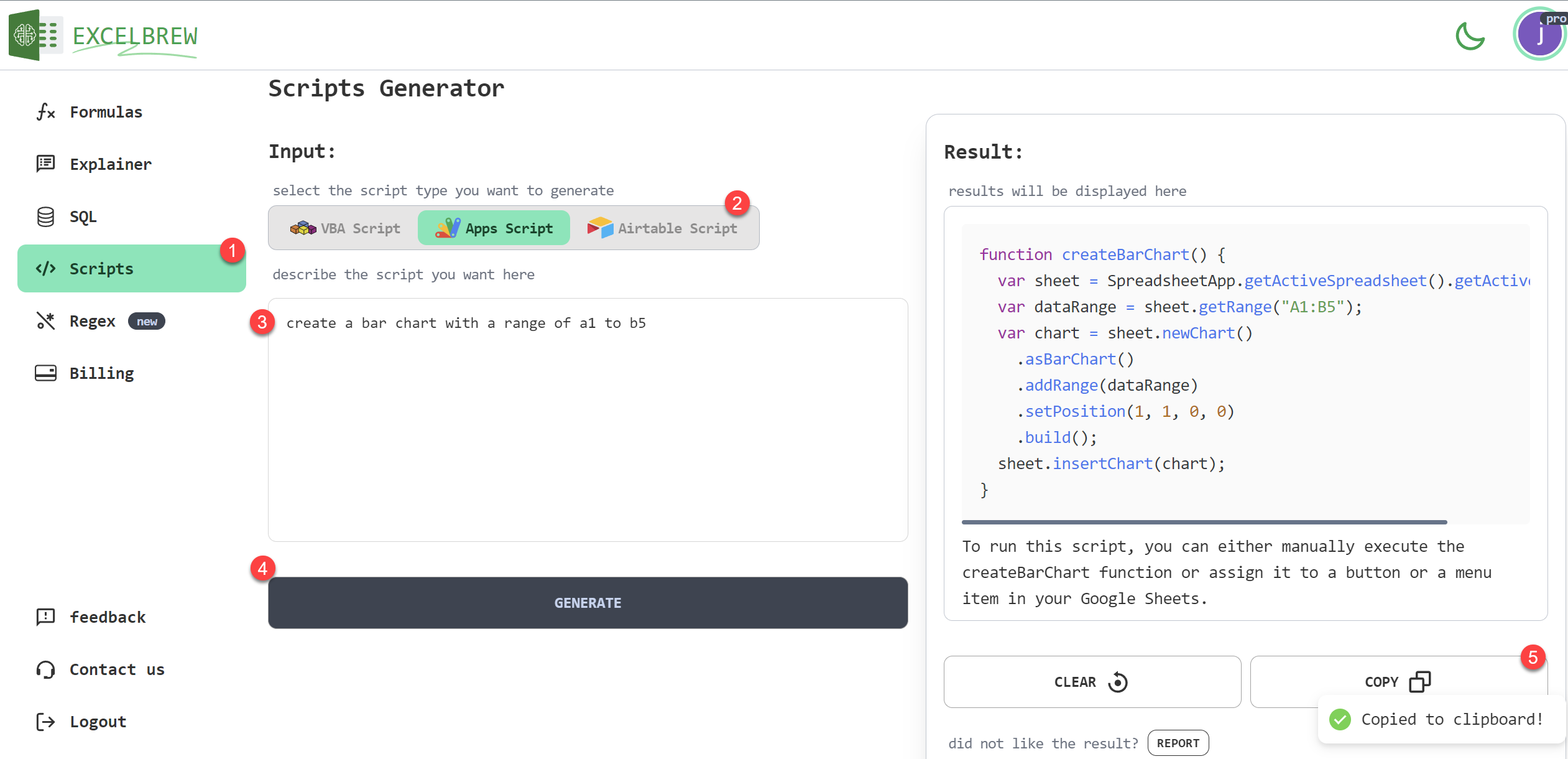
### Step 1: Pop into the Scripts Page
Embark on your automation adventure by selecting 'Scripts' from the sidebar navigation.
### Step 2: Decide on Your Spreadsheet Platform
Whether your go-to platform is Google Sheets, Microsoft Excel, or Airtable, GPTExcel has you covered. After clicking 'Scripts', pick your preferred scripting platform.
### Step 3: Propose Your Prompt
After your platform selection, a vacant text field appears, eagerly awaiting your prompt. Here, you can define the tasks you wish your script to automate on your selected platform.
### Step 4: Generate Your Script
Hit the 'Generate' button after jotting down your prompt. Sit back and let GPTExcel's state-of-the-art AI decipher your requirement and swiftly develop an automation script tailored to your needs.
### Step 5: Copy and Employ The Generated Script
The moment GPTExcel finishes creating your custom script, an option to copy it to your clipboard comes into view, all set for you to integrate it into your platform of choice and kickstart your automation process.
Take your productivity up a notch by leveraging the abundant capabilities of GPTExcel's script generator. Allow GPTExcel to handle the mundane tasks as you dedicate your focus to strategic decision-making and business growth.
Embark on your journey towards efficient spreadsheet management with [GPTExcel](https://gptexcel.uk/products/script-generator) today. Unlock your potential to drive improved performance, save precious time, and enhance efficiency as you exploit the magic of automation.
---
# Decoding and Generating Regex with AI: A Guide to GPTExcel's Regex Generator
URL: https://gptexcel.uk/blog/decoding-and-generating-regex-with-ai-a-guide-togptexcels-regex-generator
Published: 2023-08-30
> Unleash the potential of AI in generating or explaining complex regex patterns with GPTExcel. Streamline your regex processes with ease and efficiency.

Diving into the world of regex (regular expressions) can get tricky, but not if you have an AI working by your side. Presenting [GPTExcel](https://gptexcel.uk/)'s Regex Generator, an AI tool that aids you in generating or decoding intricate regex patterns.
Let's journey through the simple steps of using GPTExcel's Regex Generator.
## A Handy Guide to GPTExcel's Regex Generator
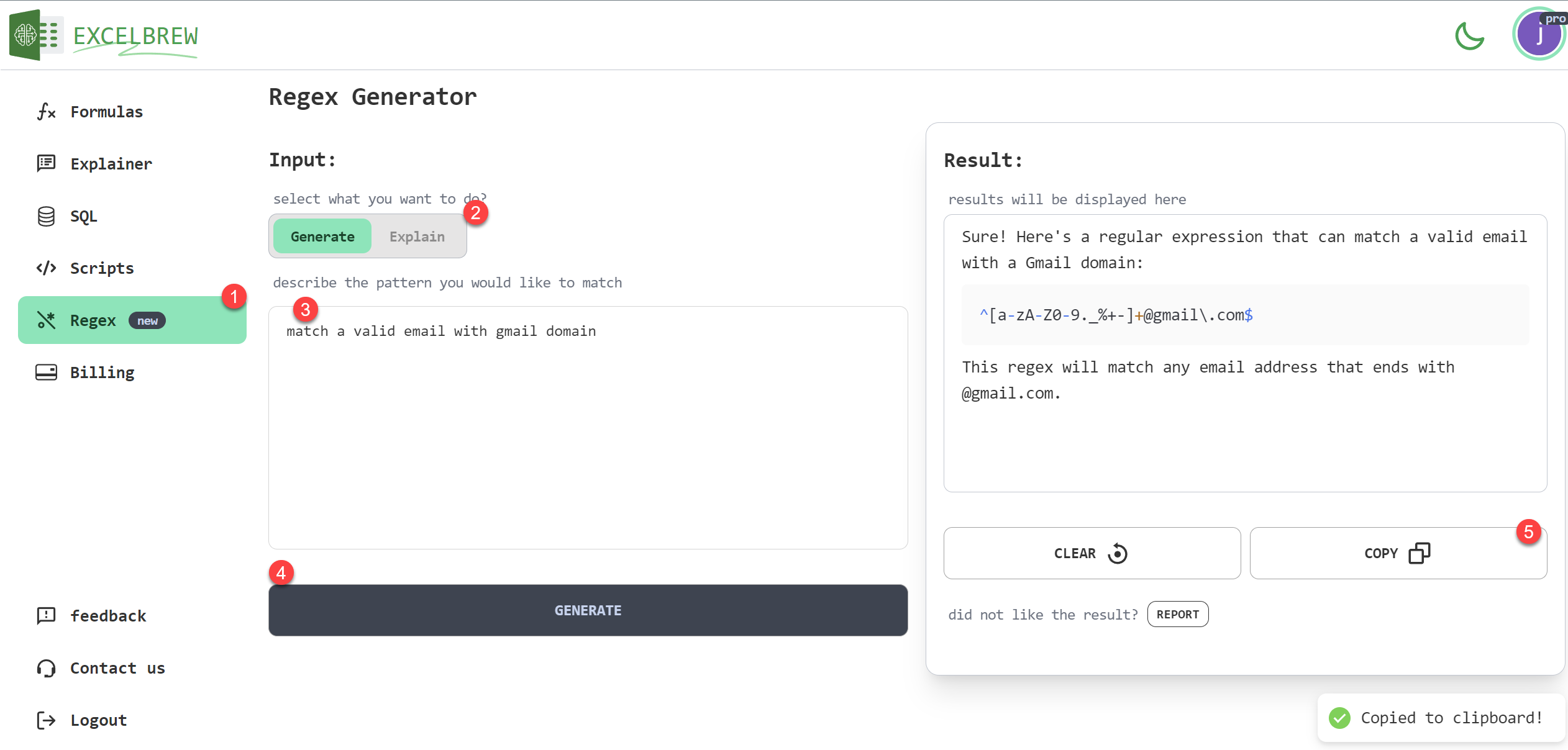
### Step 1: Maneuver to the Regex Page
Kick start your regex expedition by navigating to 'Regex' from the sidebar navigation.
### Step 2: Choose Your Action
After clicking 'Regex', you can either 'Generate' a new regex pattern or 'Explain' an existing one. Pick the action that suits your need from the available option buttons.
### Step 3: Provide Your Prompt
Following your action selection, fill in the text field below. If you're generating regex, define the pattern you need; if you are explaining, input the regex pattern that you want to be decoded.
### Step 4: Procure the Solution
Now comes the fun part. Click on the 'Generate' button and let GPTExcel's intelligent AI work its magic. In no time, it will either churn out your tailor-made regex pattern or elucidate your given regex, depending on the selected action.
### Step 5: Copy and Implement
Upon GPTExcel's prompt evaluation and response, an option to copy the solution to your clipboard becomes available. Utilize this to effortlessly carry the output into your desired application.
GPTExcel's Regex Generator is your trusted ally in tackling complexities of regex patterns. Even in such robust domains, the application of AI has shown immense potential in aiding developers greatly.
Kick-off your path to convenient regex handling with [GPTExcel](https://gptexcel.uk/products/regex-generator) today. Enhance your coding prowess, save crucial time, and embrace simplicity by allowing AI to handle regex's intricacies while you can focus on the larger scheme of things.
---
# Decoding Excel Formulas with AI: A Step-by-Step Guide using GPTExcel
URL: https://gptexcel.uk/blog/decoding-excel-formulas-with-ai-a-step-by-step-guide-using-gptexcel
Published: 2023-08-30
> Unravel the complexities of your Excel formulas with GPTExcel, the AI-powered formula explainer for Excel, Google Sheets, and Airtable. Simplify data analysis by understanding every step your spreadsheet takes.

Are your spreadsheet formulas resembling encrypted code? If your answer is yes, this guide is for you. Welcome to [GPTExcel](https://gptexcel.uk/), your AI-assisted Excel formula explainer, adept at unwrapping complex Excel functions, Google Sheets calculations, and Airtable operations. Let's traverse through the steps to unveil the magic of GPTExcel's formula explainer.
## Unwind Intricate Formulas with GPTExcel
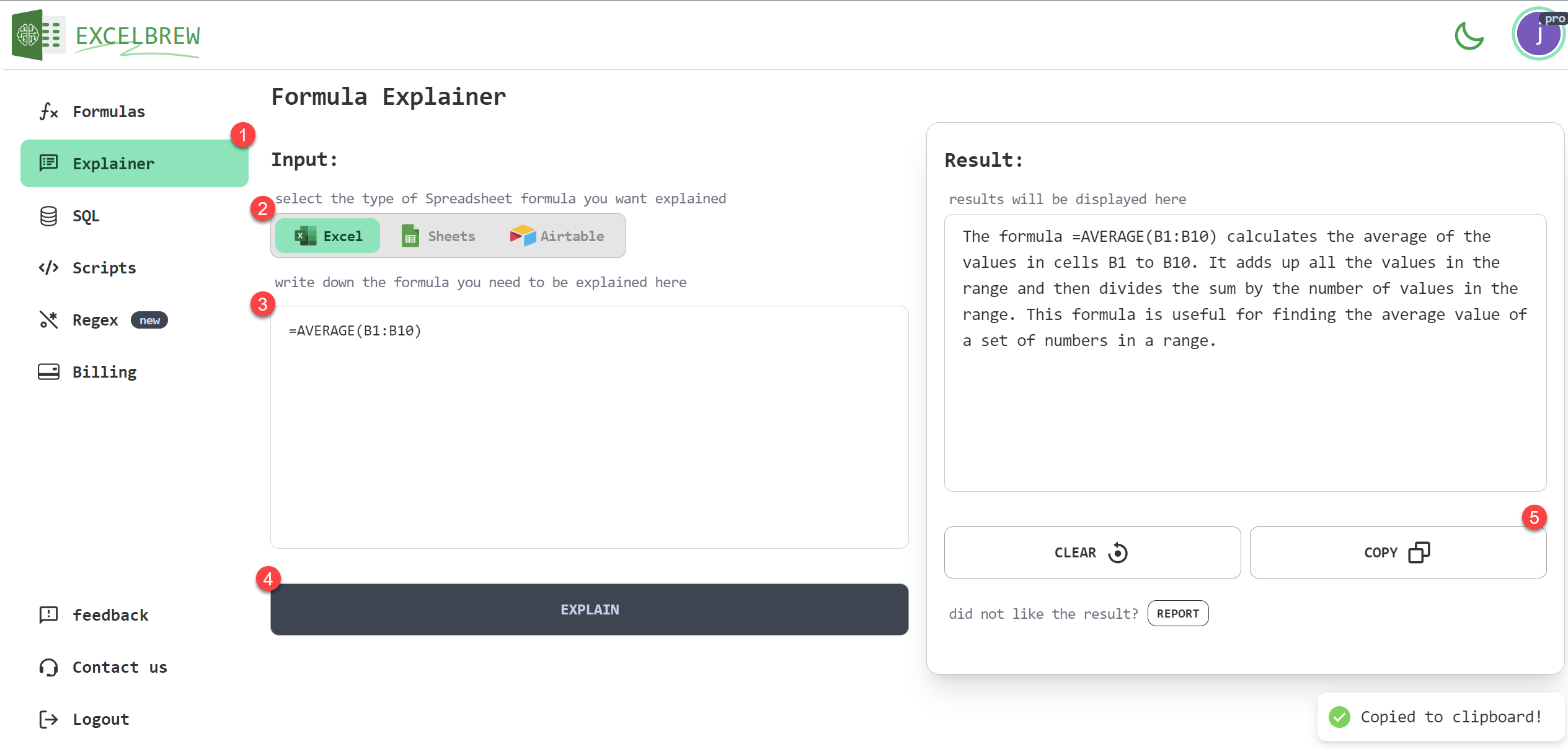
### Step 1: Make Your Way to the Formula Explainer Page
Begin your journey to effortless formula understanding by selecting 'Explainer' from the navigation bar available on the [GPTExcel](https://gptexcel.uk/) website.
### Step 2: Select the Platform
You can work with either Microsoft Excel, Google Sheets, or Airtable. Whichever platform you're using, GPTExcel got you covered. Simply choose your desired platform from the option buttons to proceed.
### Step 3: Enter Your Complex Formula
Now, copy and paste your complex formula that’s challenging your understanding into the text field provided. GPTExcel will handle the rest.
### Step 4: Unravel the Complexity at a Click
With your formula in the field, press the 'Explain' button for GPTExcel's AI to decode the formula into understandable steps and plain English descriptions or you can also ask the ai to explain in your native language.
### Step 5: Copy the Explanation and Implement
GPTExcel presents the explanation with an easily accessible 'Copy' button. Grab the information, and stride towards a more informed data analysis path with better understanding of your formulas.
Engage with GPTExcel to unlock the mysteries behind complex spreadsheet formulas. With a few simple steps and keystrokes, GPTExcel transforms intimidating functions and equations into comprehensible knowledge.
Set your journey in motion today with [GPTExcel](https://gptexcel.uk/products/formula-generator), and witness how understanding your spreadsheet formulas can lead to remarkable gain in productivity, accuracy, and data insights. Embrace the power of AI to transform your spreadsheet experiences.
---
# Generating Excel Formulas with AI: A Step-by-Step Guide using GPTExcel
URL: https://gptexcel.uk/blog/generating-excel-formulas-with-ai-a-step-by-step-guide-using-gptexcel
Published: 2023-08-30
> Discover how GPTExcel, an AI-powered Excel formula generator, can swiftly create intricate formulas for Excel, Google Sheets, and Airtable, boosting your spreadsheet efficiency.
Are you tangled in elaborate Excel formulas, Google Sheets functions, or Airtable operations? The solution to your spreadsheet woes is here. Introducing [GPTExcel](https://gptexcel.uk/), an AI-driven Excel formula generator designed to augment your productivity by expeditiously generating formulas across various spreadsheet platforms.
Let's guide you on using GPTExcel's effortless and intuitive interface to generate Excel formulas.
## Your Quick Guide to GPTExcel
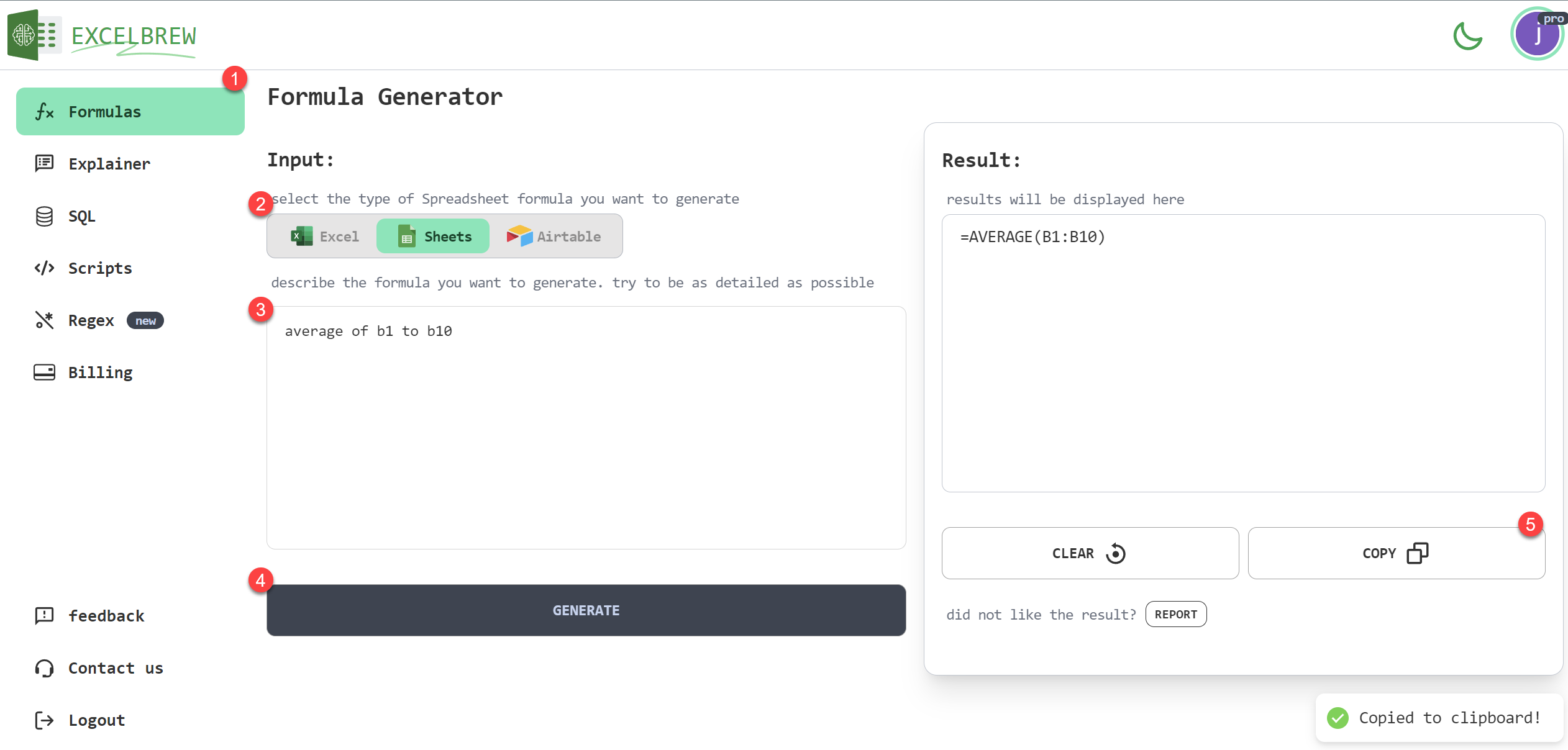
### Step 1: Navigate to Formulas Page
Start your journey towards seamless formula generation by clicking on 'Formulas' on the navigation menu on the [GPTExcel](https://gptexcel.uk/) website.
### Step 2: Choose Your Spreadsheet Platform
GPTExcel extends its support to Microsoft Excel, Google Sheets, and Airtable. Post-clicking 'Formulas', choose your desired platform from the presented option buttons.
### Step 3: Input Your Prompt
Upon platform selection, you'll notice a text field awaiting your prompt, be it an operation you wish to perform, a function you intend to delve into, or a labyrinthine task you long to simplify.
### Step 4: Generate Formulas With a Click
After inserting your prompt, press the 'Generate' button, and let GPTExcel's smart AI evaluate your request and craft an appropriate formula designed exclusively for your needs.
### Step 5: Copy and Deploy the Generated Formula
GPTExcel renders the generated formula with an inclusive option to copy it to your clipboard, accessible with a simple click for effortless incorporation into your spreadsheet.
GPTExcel has intricately simplified the complex world of spreadsheets. Redefine your workflow in Microsoft Excel, Google Sheets, or Airtable by utilizing the strength of AI via GPTExcel’s proficient formula generator.
Embark on your journey to elevated spreadsheet proficiency today with [GPTExcel](https://gptexcel.uk/products/formula-generator). Enhance your workflow, save precious time, and reveal improved capabilities as you shift your focus from grappling with complex formulas to making the most of your data.
---
# Generating SQL Queries for Diverse DBMS with GPTExcel: An All-Inclusive Guide
URL: https://gptexcel.uk/blog/generating-sql-queries-for-diverse-dbms-with-gptexcel-an-all-inclusive-guide
Published: 2023-08-30
> Unveil how GPTExcel’s AI-powered SQL query generator seamlessly creates complex SQL queries for a wide variety of DBMS, revolutionizing your database operations.

Baffled by complicated SQL queries? Seeking an effortless way to construct and execute SQL queries across various DBMS (Database Management Systems)? Say hello to [GPTExcel](https://gptexcel.uk/), a remarkable AI-powered SQL query generator. GPTExcel facilitates efficient SQL query creation for a vast array of DBMS, thus making your database operations more productive and less demanding.
GPTExcel supports a host of DBMS, including SQL, SQLite, MySQL, MariaDB, PostgreSQL, Oracle DB, MS SQL Server, Microsoft Access, Amazon Aurora, Google Cloud SQL, CockroachDB, Apache Derby, IBM Db2, SAP HANA, Teradata, Informix, Sybase, Firebird, and Snowflake.
Let's explore how you can use GPTExcel to effortlessly generate SQL queries.
## Unleashing the Power of GPTExcel: A User-friendly Approach
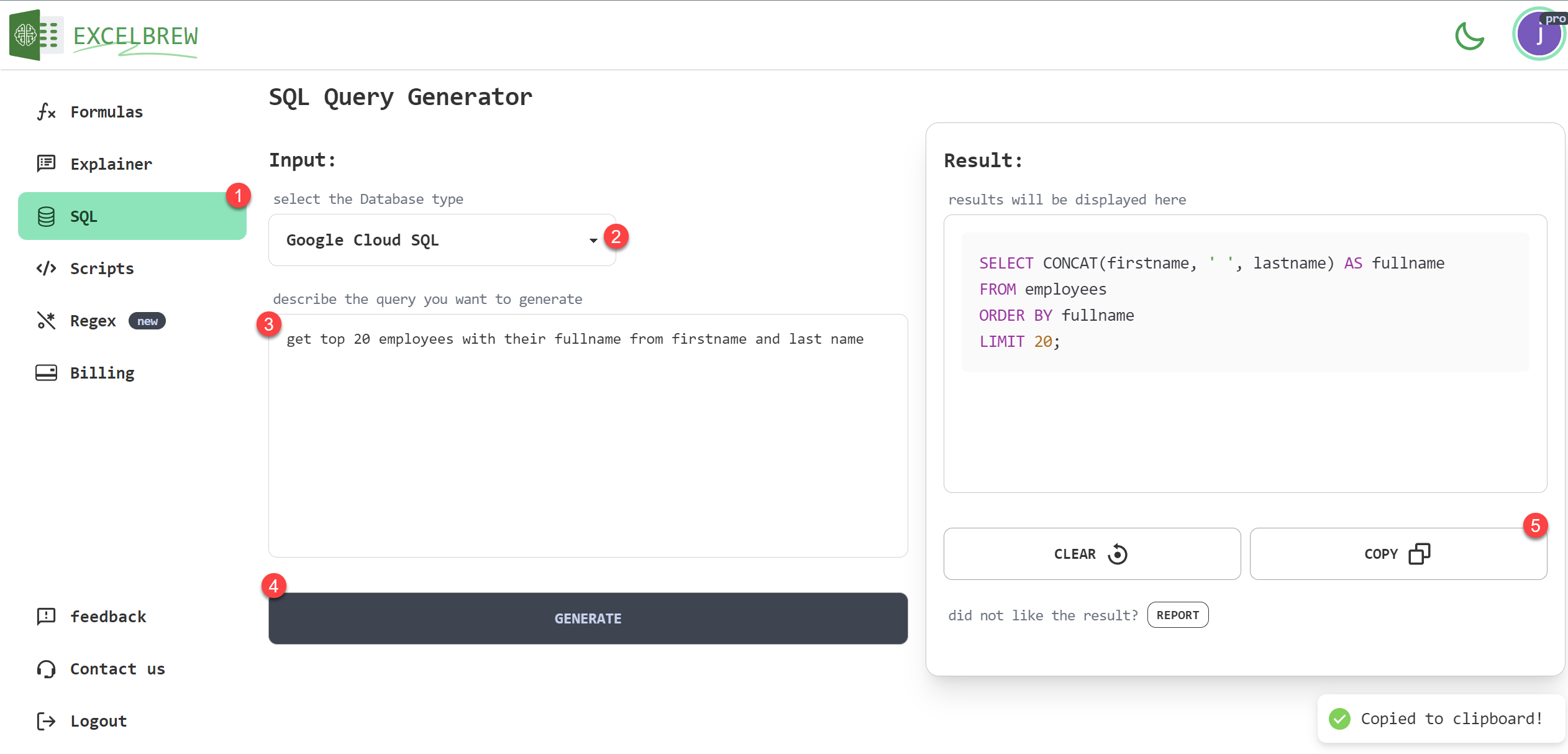
### Step 1: Navigate to SQL Page
Initiate your journey towards seamless query creation by selecting 'SQL' from the navigation menu on the [GPTExcel](https://gptexcel.uk/) website.
### Step 2: Choose Your DBMS
One of GPTExcel's dominant features is its extensive support for diverse DBMS. Choose your preferred DBMS from the list in the dropdown menu.
### Step 3: Detail Your Prompt
Once you've identified your DBMS, type in your specific action or operation in the provided text input field.
### Step 4: Click Generate
After you've adequately detailed your request, click 'Generate'. GPTExcel's smart AI assesses your request and creates an appropriate SQL query targeted to your needs.
### Step 5: Copy and Use the Generated Query
GPTExcel supplies the generated SQL query with a single-click 'copy to clipboard' option. This allows you to swiftly integrate the query into your DBMS for immediate application.
GPTExcel is revolutionizing how database professionals interact with a wide range of DBMS. Shift from time-consuming manual query creation to efficient, AI-driven automation with GPTExcel.
Kickstart your transformative journey towards database efficiency with [GPTExcel](https://gptexcel.uk/products/sql-generator). Save time, streamline operations, and maximize your data utilization without the typical coding struggle.
---
# Revolutionize Your Spreadsheet Workflow with GPTExcel
URL: https://gptexcel.uk/blog/revolutionize-your-spreadsheet-workflow-with-gptexcel
Published: 2023-07-11
> Step into the future of streamlined spreadsheet processes with GPTExcel, an AI-powered Excel formula generator.

Are you spending countless hours tangled in complicated spreadsheet formulas? Looking for an accessible solution to accelerate and streamline your spreadsheet processes? Your quest ends here. Introducing [GPTExcel](https://gptexcel.uk/), an AI-powered Excel formula generator SaaS application, committed to revamping your workflow with accuracy and efficiency. Dive into the world of automated spreadsheet handling with us.
## Craft Intricate Spreadsheet Formulas with Ease
GPTExcel is engineered with sophisticated AI capabilities of generating complex spreadsheet formulas for a myriad of platforms, encompassing Excel, Google Sheets, and Airtable. With GPTExcel, you can readily bid adieu to the hassles of manually inputting intricate spreadsheet formulas and bask in the simplicity and speed it infuses into your workflow. Check it out [here](https://gptexcel.uk/products/formula-generator).

## Decoding Spreadsheet Formulas Made Simple
GPTExcel is your go-to mentor for any spreadsheet formula conundrum. Its AI not only generates spreadsheet formulas but also clarifies them. So, scrap those countless tabs of Google search and leverage the comprehensive formula explanations that GPTExcel provides, simplifying all your spreadsheet complexities. Discover more [here](https://gptexcel.uk/products/formula-generator).

## Forge SQL Queries at a Click
GPTExcel’s superiority transcends beyond spreadsheets. It offers a quick solution to generate SQL queries for all types of SQL DBMS, subtracting the need for specific SQL knowledge. With GPTExcel, you can streamline data extraction, updating databases, and executing complex queries with ease. Flex this feature [here](https://gptexcel.uk/products/sql-generator).

## Experience the Power of Automation
Leap into the future of spreadsheets with GPTExcel's script generation feature. Ranging from VBA to Apps Script and Airtable Script, its AI generates scripts that automate spreadsheet tasks. The automation facilitates you to focus on the strategic aspect of your work rather than repetitive tasks. Harness the power of automation [here](https://gptexcel.uk/products/script-generator).

## To Sum Up
Disentangle yourself from the spreadsheet nightmare! GPTExcel, with its cutting-edge AI, is here as your ally in digital transformation. This powerful tool will help you unlock new levels of productivity, precision, and efficiency. Jumpstart your journey with GPTExcel today and transform your workflow experience dramatically.